
Skip to content
Kalever
  • How We Work
  • The Platform
  • Why Kalever
  • Resources
    • Articles
    • Product Decks
    • Case Studies
  • Contact
Kalever
  • How We Work
  • The Platform
  • Why Kalever
  • Resources
    • Articles
    • Product Decks
    • Case Studies
  • Contact

Getting Started

4
  • Your Home Dashboard: Overview
  • Account and Notification Settings
  • Create a New Project
  • Navigating the Project Dashboard

Pricing tool

2
  • How to Create a New Quote
  • How to Download, Edit, and Duplicate Quotes

Survey Creator

7
  • How to Create a New Survey
  • Classic Editor: Control Area
  • Classic Editor: Overview
  • Classic Editor: Adding and Editing Survey Elements
  • Classic Editor: Using Custom Modules
  • Decipher Editor: Editing Your Survey
  • AI Assistant

TrackEntry Tool

4
  • Introduction to TrackEntry: Access and Overview
  • How to Create, Edit, and Manage Entries
  • Using Live Chat for Real-Time Communication
  • How to Integrate TrackEntry with a Decipher Survey

Codebooks Tool

2
  • Creating a Codebook for Open-Ended Data
  • How to Edit and Manage Your Codebook

Best Practices: A Project Lifecycle Guide

7
  • Phase 1: The Bidding Stage: Creating a Winning Quote
  • Phase 2: Project Kick-Off: Setting Up for Success
  • Phase 3: Questionnaire Design — From Idea to Final Draft
  • Phase 4: Initial Survey Programming: A Seamless Handoff
  • Phase 5: QA – Efficient and Traceable Survey Testing
  • Phase 6: Managing Client Feedback and Changes
  • Phase 7: Data Checks — Ensuring Data Quality

Survey Intelligence

4
  • Introduction to Survey Intelligence
  • Accessing Survey Intelligence
  • Running an Analysis within Survey Intelligence tool
  • Reviewing Results
View Categories
  • Home
  • Knowledge Base
  • Survey Creator
  • How to Create a New Survey

How to Create a New Survey

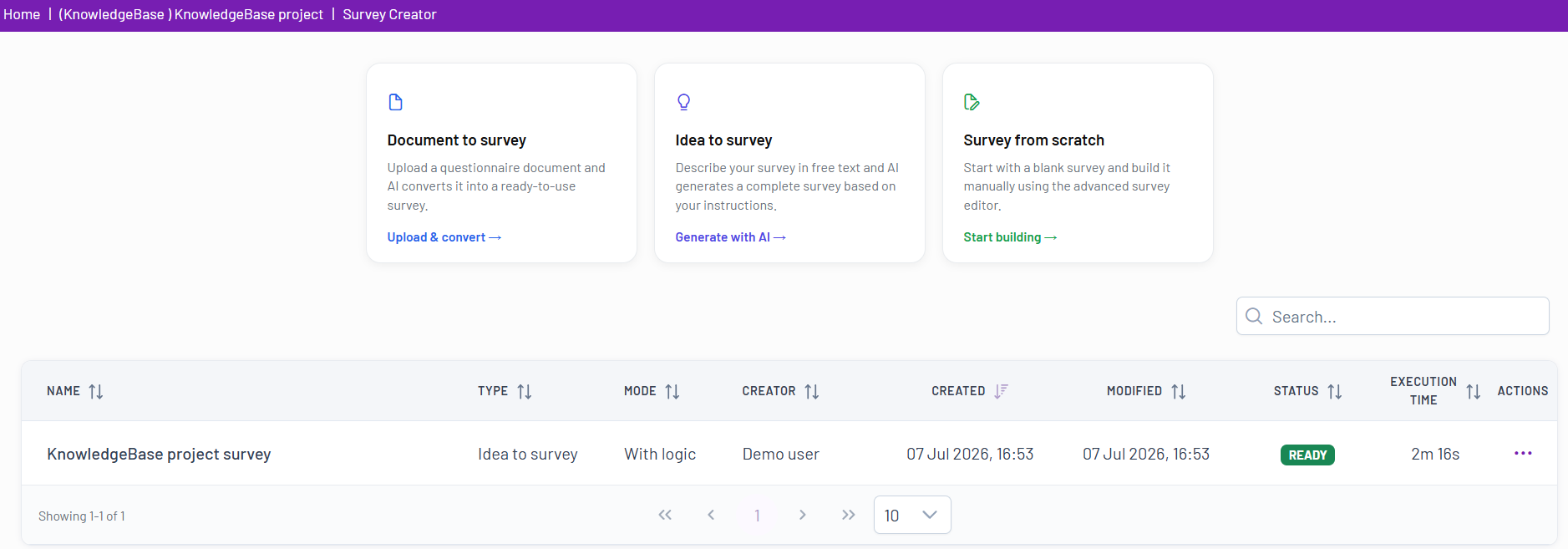
From the Project Dashboard, click the Survey Creator button to begin. You will be taken to the Survey Creator hub, which lists all the surveys within your project and provides three ways to start a new one.

Below is a step-by-step guide for each creation method.

Option 1: Document to Survey #

This is the best option when you already have a complete questionnaire in a Word document.

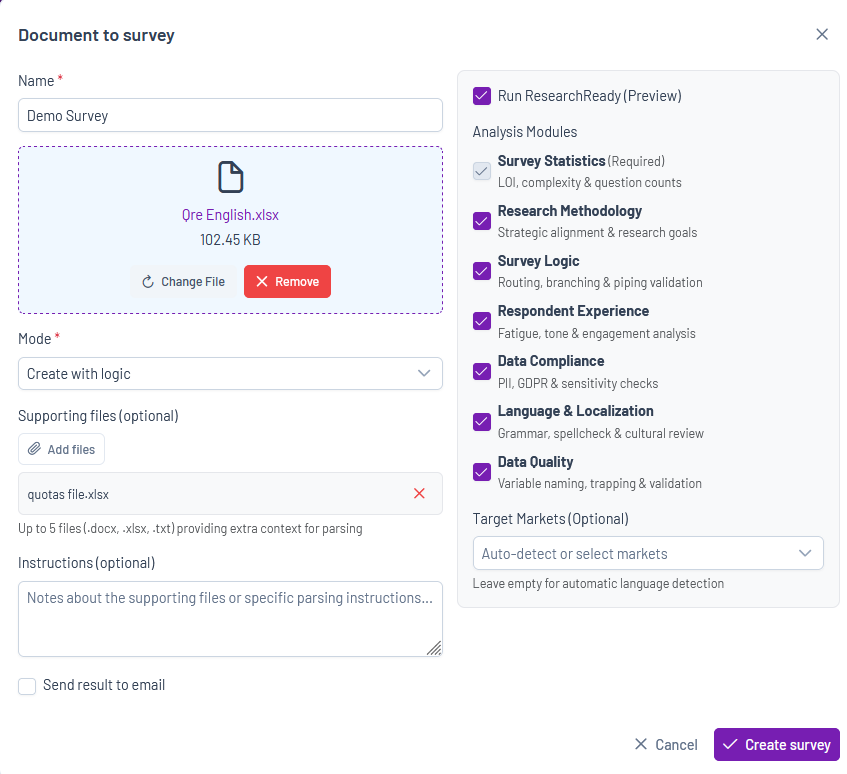
      1. Click the Document to survey button.
      2. A pop-up window will appear.
      3. Name: Give your survey a clear, descriptive name.
      4. Upload File: Drag and drop your Word document into the designated area, or click Browse Files to upload it from your computer.
      5. Mode: Choose whether the survey should be generated with logic or without logic. “Create with logic” mode creates full survey – structure (all survey questions with their properties) and all survey logic (filters, terminate conditions, validations etc.).
        “Create without logic” mode creates only the structure of the survey (e.g. all survey questions).
      6. Send result to email: Select an Export Template to automatically receive the generated survey results.
      7. Run Survey Intelligence (Beta): Enable automated analysis to review your survey using advanced AI-powered checks.
      8. Analysis Modules
        • Survey Statistics (Required): Analyzes key metrics such as length of interview (LOI), survey complexity, and total number of questions.
        • Survey Logic (Required): Validates survey logic, including routing, branching, and piping, to ensure correct flow.
        • Data Compliance: Checks for PII, GDPR compliance, and overall data sensitivity.
        • Data Quality: Reviews variable naming, identifies potential issues, and validates survey structure.
        • Research Methodology: Evaluates strategic alignment and research goals.
        • Respondent Experience: Assesses survey fatigue, tone, and overall engagement analysis.
        • Language & Localization: Performs grammar, spelling, and cultural appropriateness checks.
        • Target Markets (Optional): Specify target markets or languages. Leave empty for automatic language detection.
      9. Click Create Survey. The system will analyze your document and build the survey for you.

      Option 2: Idea to Survey #

      Use this AI-powered tool to generate a survey draft from a simple concept or idea.

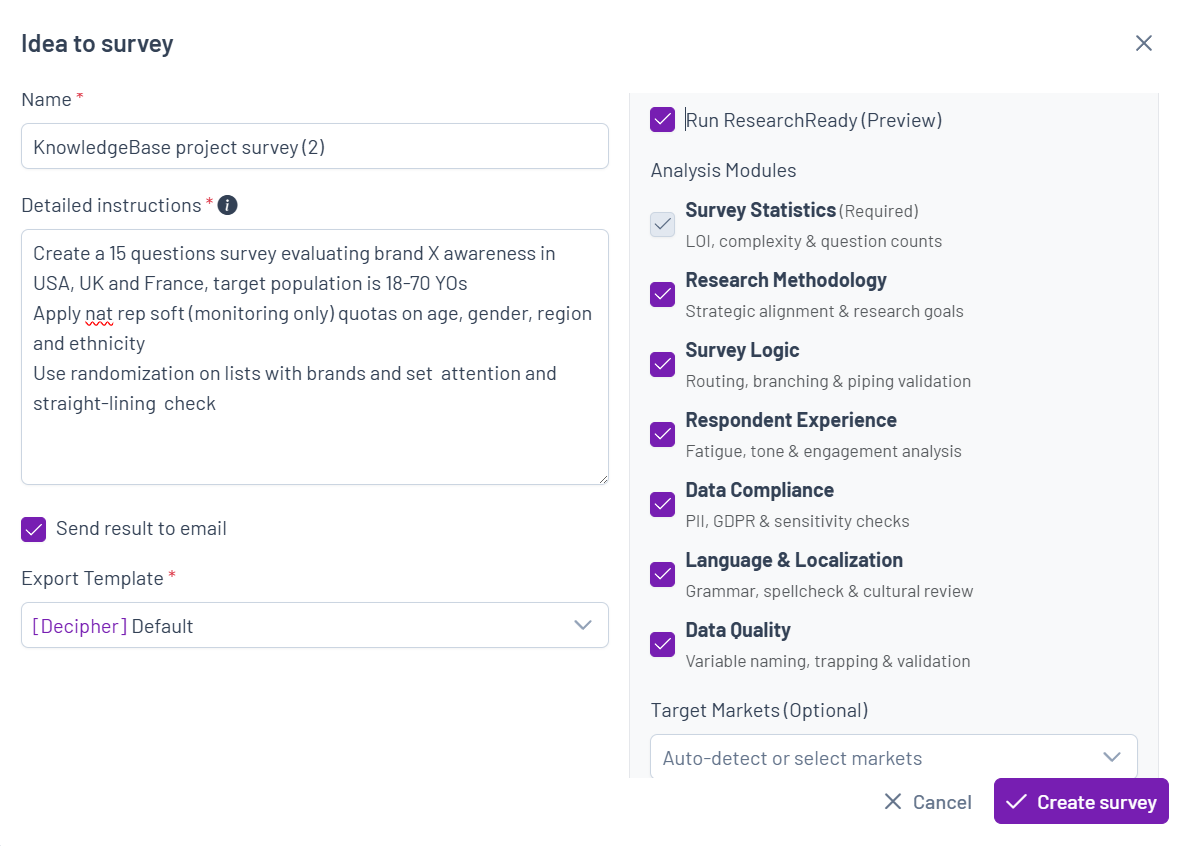
      1. Click the Idea to survey button.
      2. A pop-up window will appear.
      3. Name: Give your new survey a name.
      4. Detailed instructions: Write a clear prompt that describes your research goals. Include the topic, target audience, desired number of questions, and any other key details. The more specific your prompt, the better the result.
      5. Send result to email: Select an Export Template to automatically receive the generated survey results.
      6. Click Create Survey. The AI will generate a tailored survey based on your instructions.

      Option 3: Survey from Scratch #

      Choose this method to build your survey manually from a blank canvas.

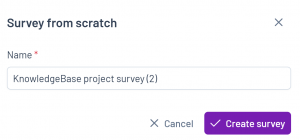
      1. Click the Survey from scratch button.
      2. A pop-up window will appear.
      3. Name: Enter a name for your survey.
      4. Click Create Survey. You will be taken directly to a blank survey editor, ready for you to start adding questions.
      Next Steps #

      After creating a survey using one of these methods, you will be taken to the Survey Editor. This is where you will customize your questions, add logic, and manage the survey’s content.

AI AssistantClassic Editor: Control Area
Table of Contents
  • Option 1: Document to Survey
  • Option 2: Idea to Survey
  • Option 3: Survey from Scratch
  • Next Steps

Share This Article :

  • Facebook
  • X
  • LinkedIn
  • Pinterest

Was it helpful ?

  • Happy
  • Normal
  • Sad
Contact form
Contact form
Linkedin

Copyright © 2026 Kalever | Powered by Kalever