Skip to content
Kalever
  • How We Work
  • The Platform
  • Why Kalever
  • Resources
    • Articles
    • Product Decks
    • Case Studies
  • Contact
Kalever
  • How We Work
  • The Platform
  • Why Kalever
  • Resources
    • Articles
    • Product Decks
    • Case Studies
  • Contact

Getting Started

4
  • Your Home Dashboard: Overview
  • Account and Notification Settings
  • Create a New Project
  • Navigating the Project Dashboard

Pricing tool

2
  • How to Create a New Quote
  • How to Download, Edit, and Duplicate Quotes

Survey Creator

7
  • How to Create a New Survey
  • Classic Editor: Control Area
  • Classic Editor: Overview
  • Classic Editor: Adding and Editing Survey Elements
  • Classic Editor: Using Custom Modules
  • Decipher Editor: Editing Your Survey
  • AI Assistant

TrackEntry Tool

4
  • Introduction to TrackEntry: Access and Overview
  • How to Create, Edit, and Manage Entries
  • Using Live Chat for Real-Time Communication
  • How to Integrate TrackEntry with a Decipher Survey

Codebooks Tool

2
  • Creating a Codebook for Open-Ended Data
  • How to Edit and Manage Your Codebook

Best Practices: A Project Lifecycle Guide

7
  • Phase 1: The Bidding Stage: Creating a Winning Quote
  • Phase 2: Project Kick-Off: Setting Up for Success
  • Phase 3: Questionnaire Design — From Idea to Final Draft
  • Phase 4: Initial Survey Programming: A Seamless Handoff
  • Phase 5: QA – Efficient and Traceable Survey Testing
  • Phase 6: Managing Client Feedback and Changes
  • Phase 7: Data Checks — Ensuring Data Quality

Survey Intelligence

4
  • Introduction to Survey Intelligence
  • Accessing Survey Intelligence
  • Running an Analysis within Survey Intelligence tool
  • Reviewing Results
View Categories
  • Home
  • Knowledge Base
  • Survey Creator
  • AI Assistant

AI Assistant

1. Overview #

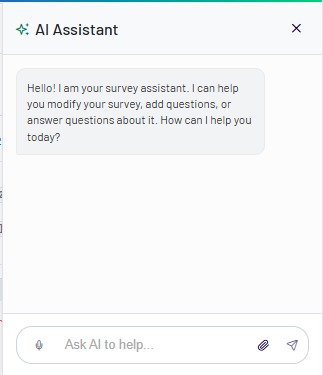
The AI Assistant is a built-in tool that helps you generate, refine, and update survey content and logic directly within the editor.

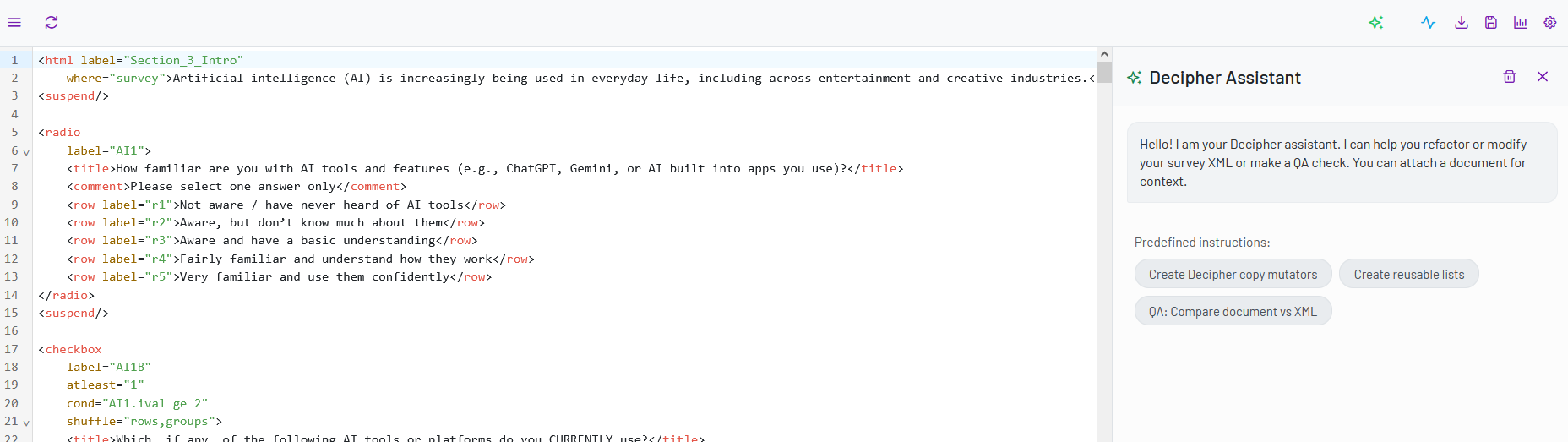
It is available in both the Classic Editor and the Decipher Editor and can be accessed from the Control Area.

You can use the AI Assistant to:

  • create new survey questions or sections
  • improve wording and clarity
  • update survey logic and structure
  • apply bulk changes across multiple elements
  • upload materials (e.g., questionnaires with tracked changes) for automated updates
  • optimize repeated elements such as answer lists

You interact with the AI Assistant by entering prompts or uploading files. The system will analyze your input and suggest updates that you can review before applying.


2. How to Use the AI Assistant #

  1. Open your survey in either the Classic or Decipher Editor.
  2. In the Control Area, click AI Assistant .
  3. Enter a prompt or upload a file with instructions.
  4. Review the generated output or suggested changes.
  5. Apply the updates to your survey.

The AI Assistant does not apply changes automatically — you remain in full control and can review all suggestions before confirming them.


3. Use Cases #

Below are examples of how the AI Assistant can be used when working on surveys.

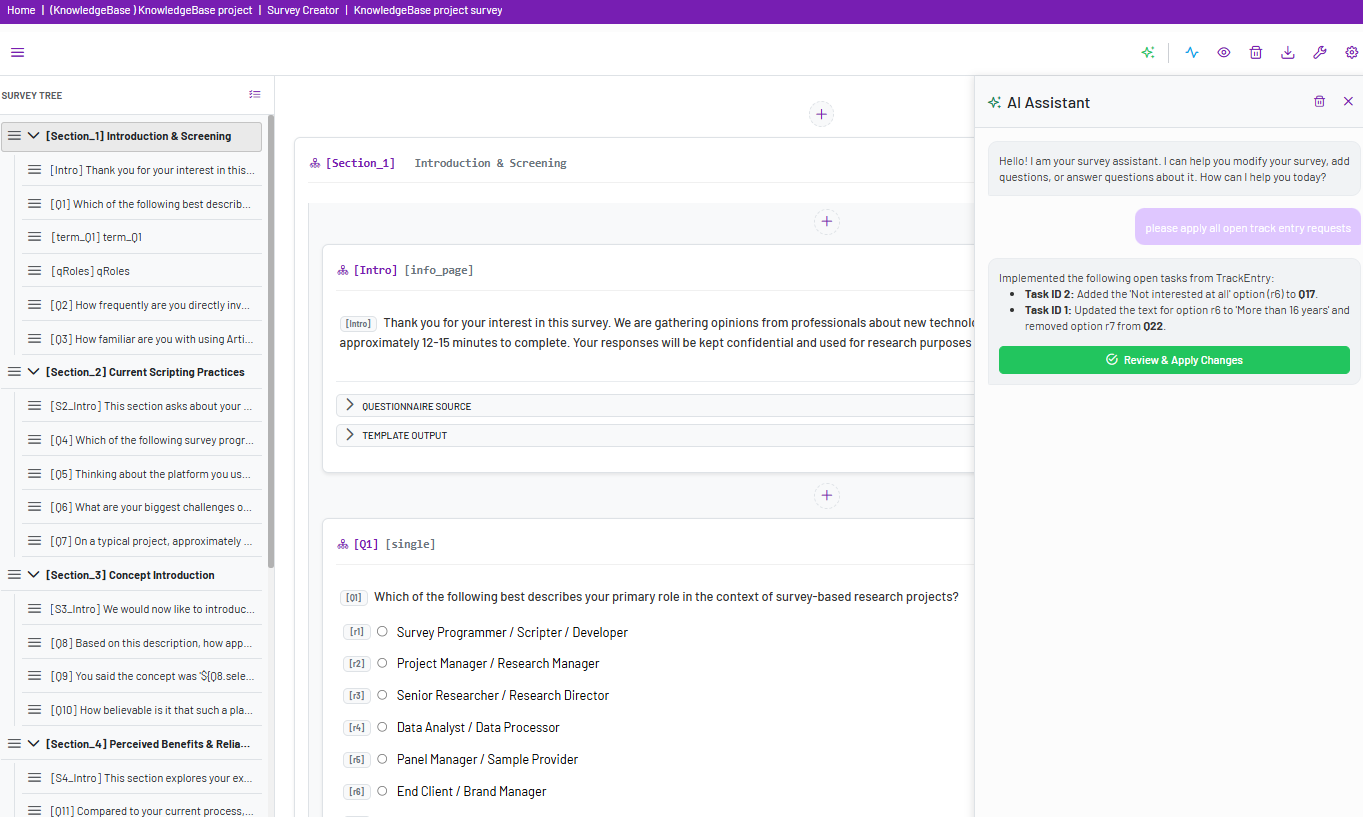
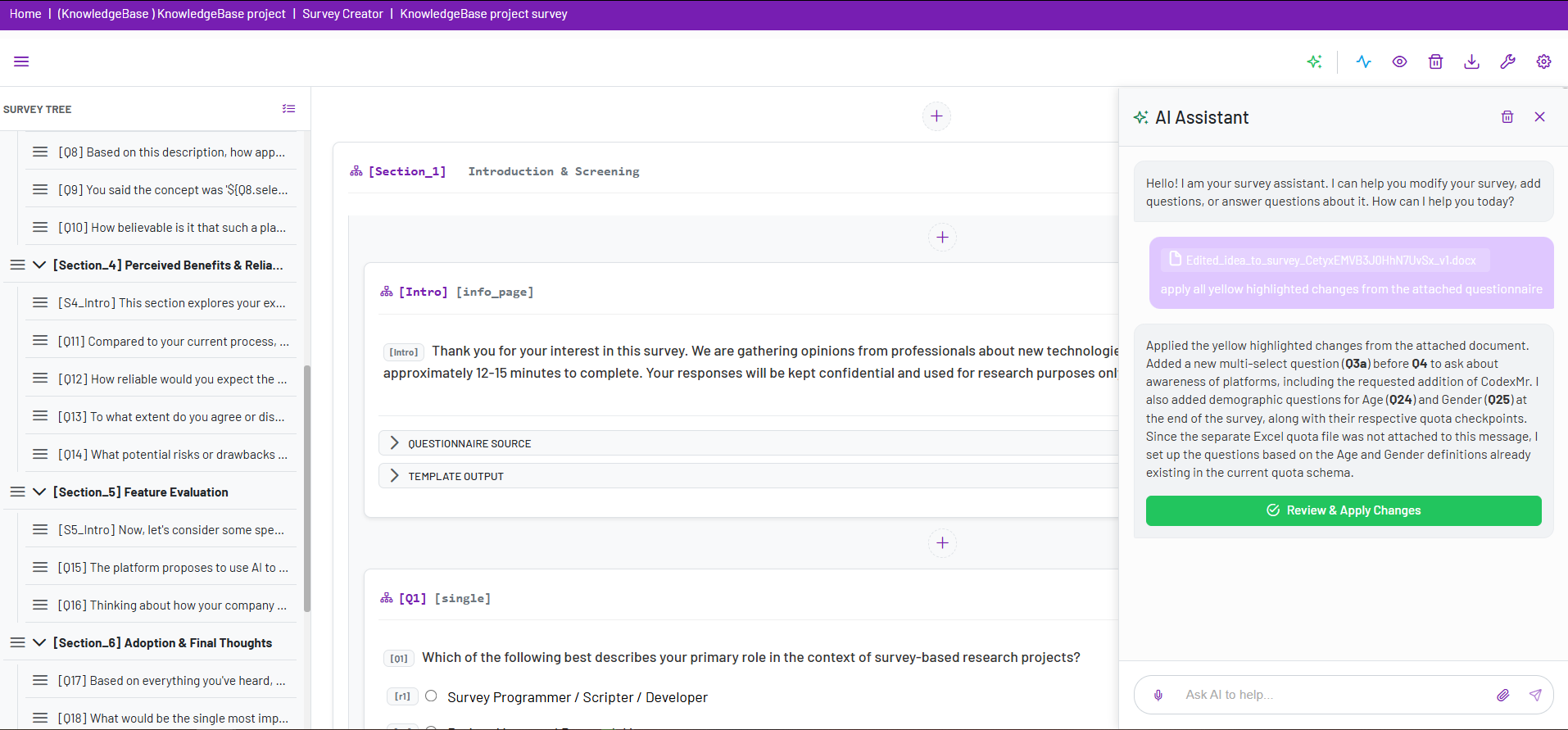
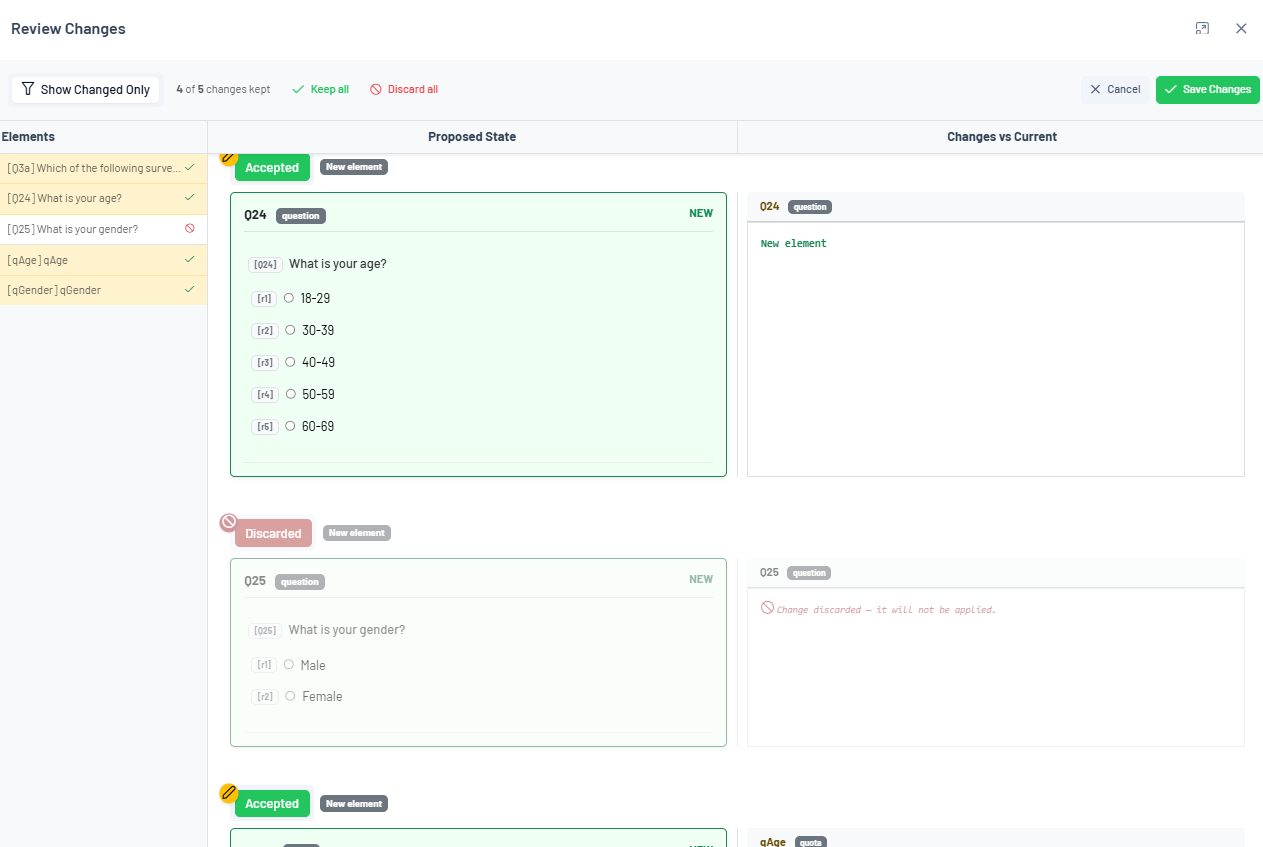
1. Upload a Questionnaire with Highlighted Changes #

Use this when you have an updated questionnaire or document with revisions.

Example instruction:
“Apply all highlighted changes from the uploaded questionnaire.”

The AI analyzes the uploaded file, detects the changes, and maps them to the corresponding survey elements for review before applying.
 

2. Update Survey Logic with Instructions #

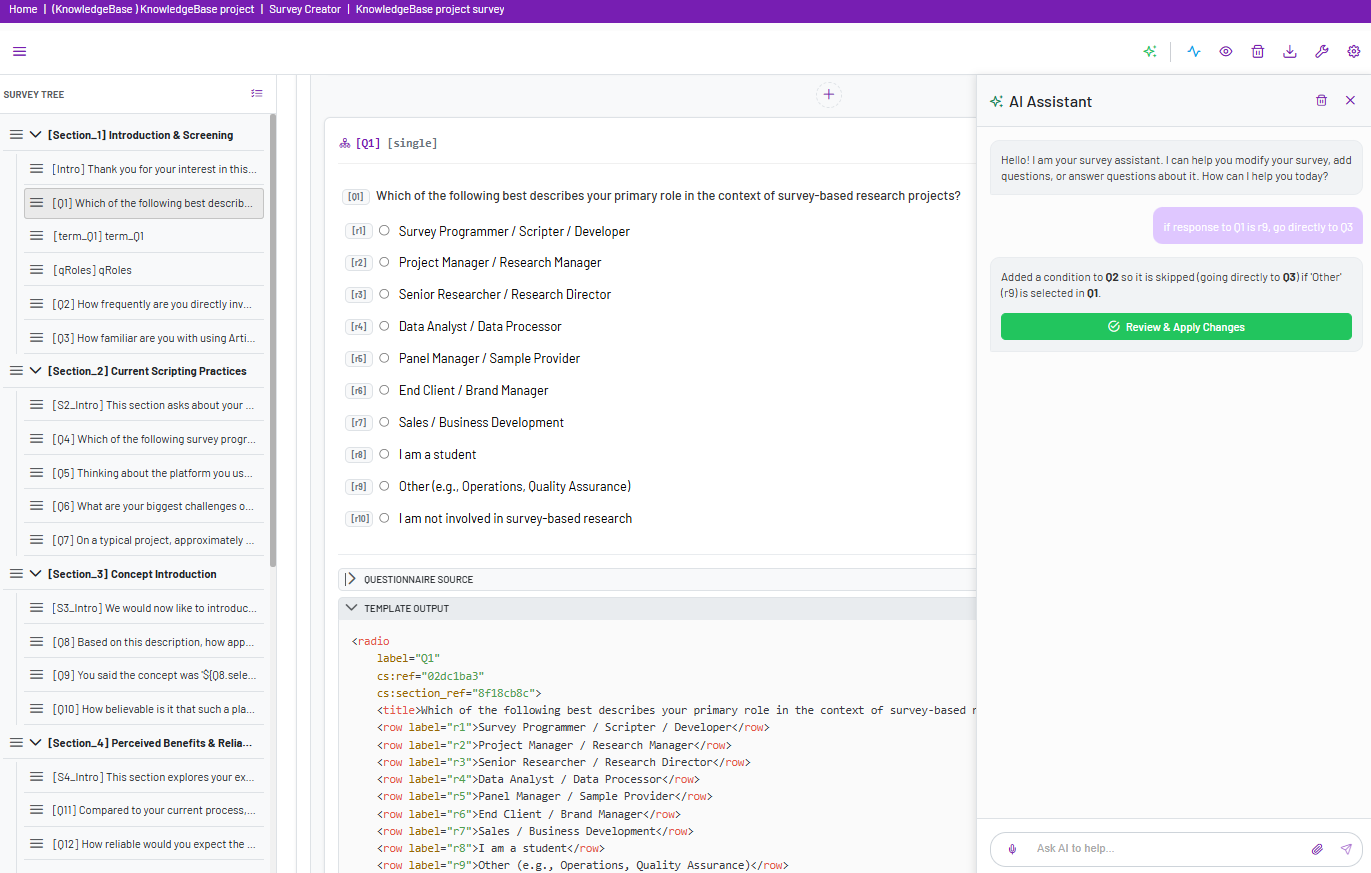
Use the AI Assistant to modify survey logic using natural language.

Example prompt:
“Add skip logic so respondents who answer ‘Not sure which Gillette’ to Q4 go directly to D1.”

The AI analyzes your instruction and suggests updates to routing, filters, or validations to ensure the correct survey flow.


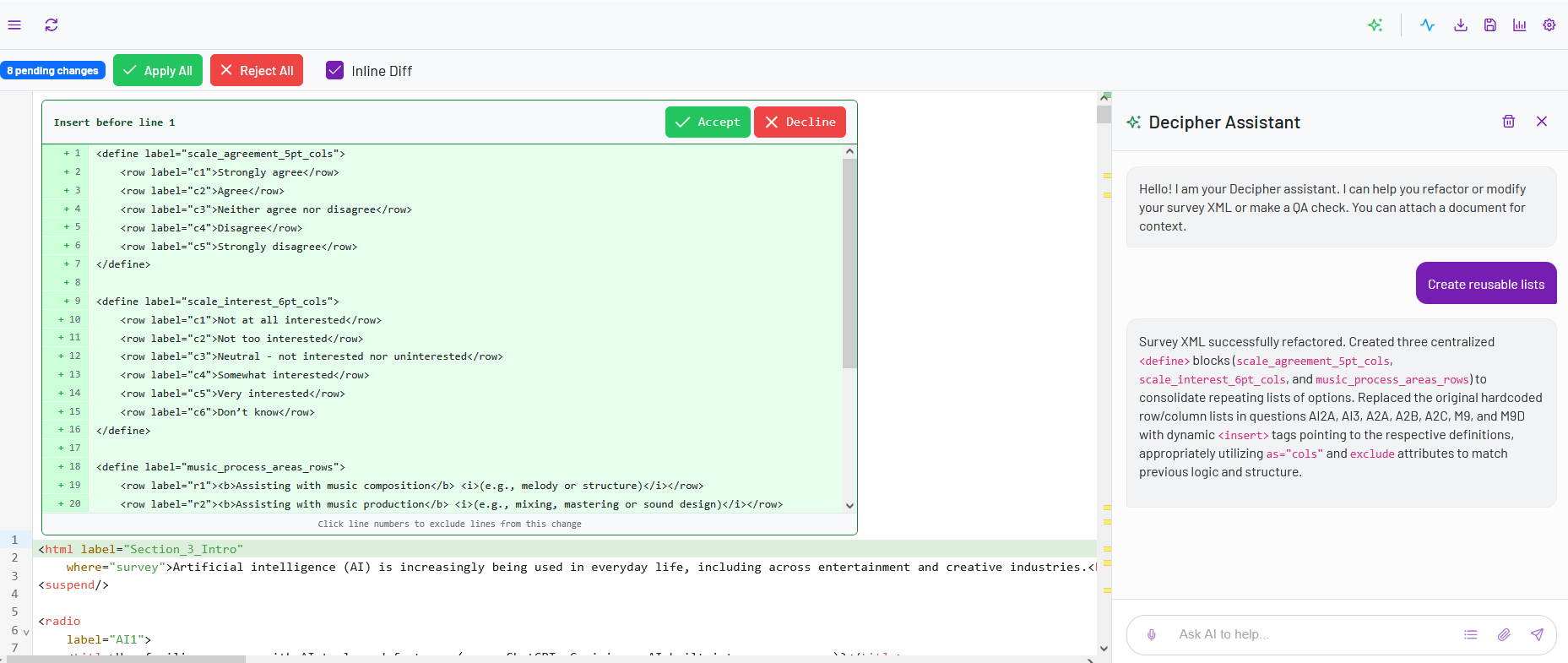
3. Convert Repeated Answer Lists into Predefined Lists #

Use this to standardize answer options that appear in multiple questions.

Example prompt:
“If a list of answers is used in more than 1 question, create it as a predefined list and insert it everywhere needed.”

The AI identifies repeated answer lists, creates a reusable list, and links it across all relevant questions to improve consistency and maintainability.

In the Decipher Editor, you can also use predefined instructions. Selecting Create reusable lists will automatically prepare and run this type of update without needing to write a prompt.


Decipher Editor: Editing Your SurveyHow to Create a New Survey
Table of Contents
  • 1. Overview
  • 2. How to Use the AI Assistant
  • 3. Use Cases
    • 1. Upload a Questionnaire with Highlighted Changes
    • 2. Update Survey Logic with Instructions
    • 3. Convert Repeated Answer Lists into Predefined Lists

Share This Article :

  • Facebook
  • X
  • LinkedIn
  • Pinterest

Was it helpful ?

  • Happy
  • Normal
  • Sad
Contact form
Contact form
Linkedin

Copyright © 2026 Kalever | Powered by Kalever