
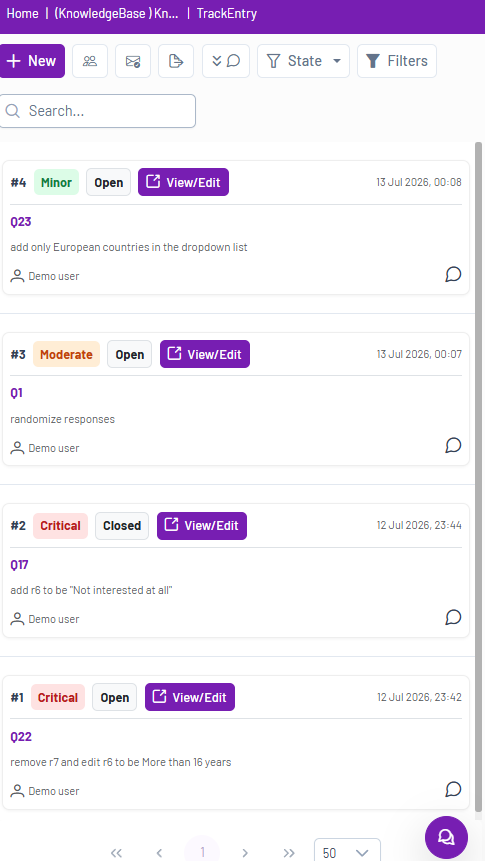
Compact view (smaller screens)
Here is a guide to the main components:
1. Top Menu #
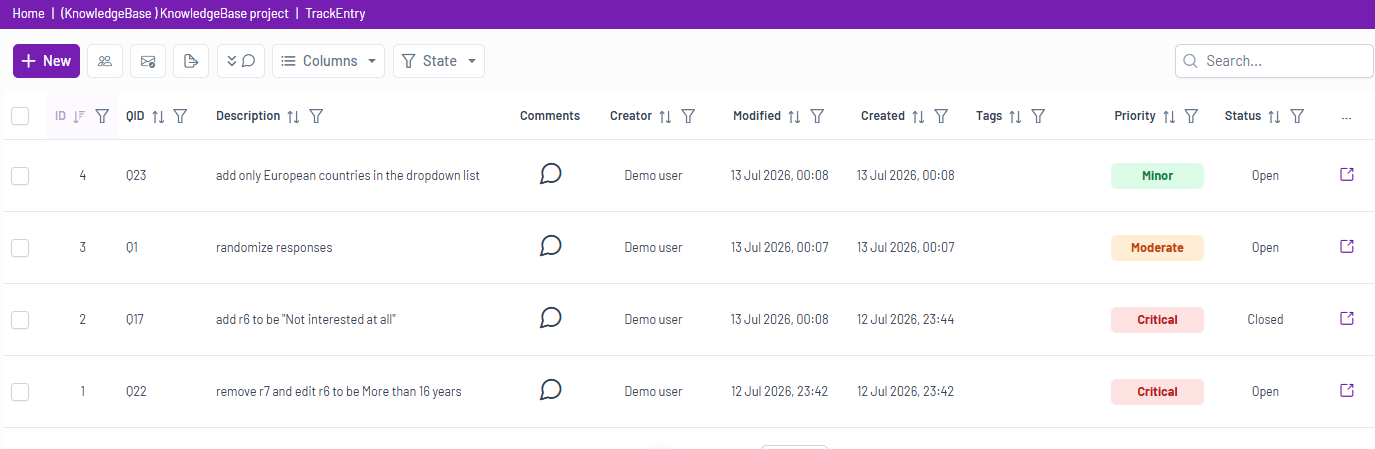
At the top left, you will find the main TrackEntry toolbar.
- New Entry
 : Create a new entry for feedback or a task.
 - Members
 : View the members of the TrackEntry project.
 - Email Summarizer
 : Paste feedback emails, optionally translate them into English, and let the AI convert them into entries. Before importing, you can adjust by:
- Selecting which entries to include
- Adding tags to help distinguish them from other entries
- Update priority and status as needed
- Export table
 : Export entries, comments, and attachments into an Excel file.
 - Expand comments
 : Expand all comments in the table view.
 - Column Display
 : Customize which columns are visible in the entry list.
 - Global State Filter
 : Filter the list to show only specific entries (e.g., New, Updated, etc.).
2. The Entries List #
The central part of the screen is the list of all entries. Each row is a separate entry and contains key information at a glance:
- ID / QID: The unique ID for the entry and the corresponding question ID it relates to.
- Description: A summary of the entry’s content.
- Tags, Priority, and Status: See organizational tags and the current state of the entry (e.g., Minor priority, Open status).
- Comments: An icon
 indicating the number of new comments on an entry.
3. Live Chat #
In the bottom right corner, you will see the Live Chat icon  . A red number indicates new, unread messages. Click this icon to open the project’s chat window for real-time discussions with all project members.