
Skip to content
Kalever
  • How We Work
  • The Platform
  • Why Kalever
  • Resources
    • Articles
    • Product Decks
    • Case Studies
  • Contact
Kalever
  • How We Work
  • The Platform
  • Why Kalever
  • Resources
    • Articles
    • Product Decks
    • Case Studies
  • Contact

Getting Started

4
  • Your Home Dashboard: Overview
  • Account and Notification Settings
  • Create a New Project
  • Navigating the Project Dashboard

Pricing tool

2
  • How to Create a New Quote
  • How to Download, Edit, and Duplicate Quotes

Survey Creator

7
  • How to Create a New Survey
  • Classic Editor: Control Area
  • Classic Editor: Overview
  • Classic Editor: Adding and Editing Survey Elements
  • Classic Editor: Using Custom Modules
  • Decipher Editor: Editing Your Survey
  • AI Assistant

TrackEntry Tool

4
  • Introduction to TrackEntry: Access and Overview
  • How to Create, Edit, and Manage Entries
  • Using Live Chat for Real-Time Communication
  • How to Integrate TrackEntry with a Decipher Survey

Codebooks Tool

2
  • Creating a Codebook for Open-Ended Data
  • How to Edit and Manage Your Codebook

Best Practices: A Project Lifecycle Guide

7
  • Phase 1: The Bidding Stage: Creating a Winning Quote
  • Phase 2: Project Kick-Off: Setting Up for Success
  • Phase 3: Questionnaire Design — From Idea to Final Draft
  • Phase 4: Initial Survey Programming: A Seamless Handoff
  • Phase 5: QA – Efficient and Traceable Survey Testing
  • Phase 6: Managing Client Feedback and Changes
  • Phase 7: Data Checks — Ensuring Data Quality

Survey Intelligence

4
  • Introduction to Survey Intelligence
  • Accessing Survey Intelligence
  • Running an Analysis within Survey Intelligence tool
  • Reviewing Results
View Categories
  • Home
  • Knowledge Base
  • TrackEntry Tool
  • Using Live Chat for Real-Time Communication

Using Live Chat for Real-Time Communication

For quick questions and real-time project discussions, TrackEntry includes a built-in Live Chat feature.

To open the chat, click the Live Chat icon located in the bottom right corner of the TrackEntry dashboard. A red badge on the icon indicates the number of unread messages.

The chat window will open on the right side of your screen.
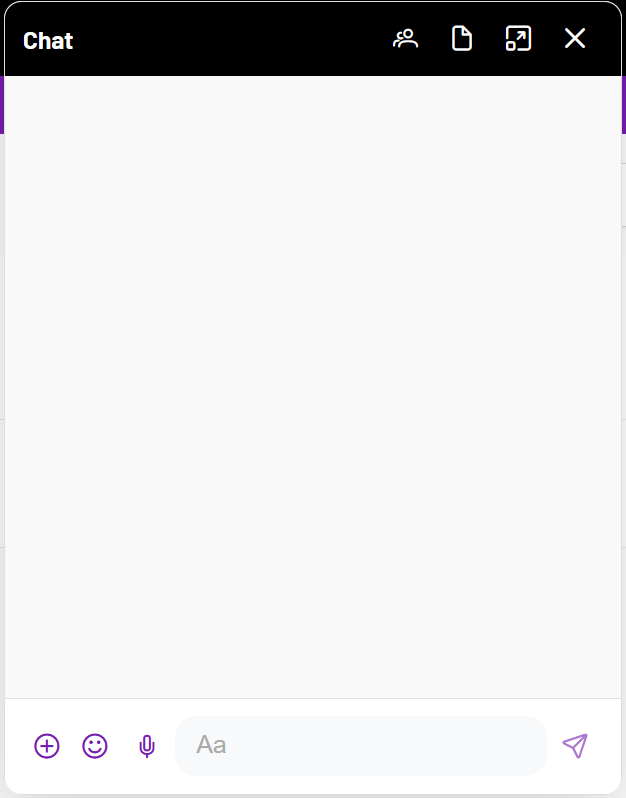
 

Key Chat Features

  • Real-Time Messaging: Type your message in the text box at the bottom of the chat and press Enter to send it instantly to all chat members.
  • Attachments: Use the  icon  to upload and share files directly in the chat.
  • Emojis & Reactions: Use the emoji icon to add emojis to your messages and make conversations more expressive.
  • Voice Typing: Use the voice typing icon to dictate your message instead of typing. Your speech will be automatically converted into text.
  • Toolbar: The chat toolbar provides access to additional features:
    • Chat Members: View the list of members who are part of the project chat.
    • Chat Files: See all files shared in the chat. You can browse and download individual files or download multiple files as needed.
    • Expand / Shrink: Expand the chat to full-screen mode for a larger view and access to additional text formatting options (such as lists and bold text), or shrink it back to the sidebar view.
    How to Create, Edit, and Manage EntriesHow to Integrate TrackEntry with a Decipher Survey

    Share This Article :

    • Facebook
    • X
    • LinkedIn
    • Pinterest

    Was it helpful ?

    • Happy
    • Normal
    • Sad
    Contact form
    Contact form
    Linkedin

    Copyright © 2026 Kalever | Powered by Kalever