The Pricing Tool offers three flexible methods for generating project cost estimates: creating a quote from specifications, building a custom quote manually, or generating a quote directly from a document.
To begin, navigate to the Pricing Dashboard for your project. Here you will see the three creation options.

Option 1: Quote from Specs (Simple vs. Advanced) #
This method is ideal when you have the project specifications but not a formal questionnaire document.
- Click the Quote from specs button.
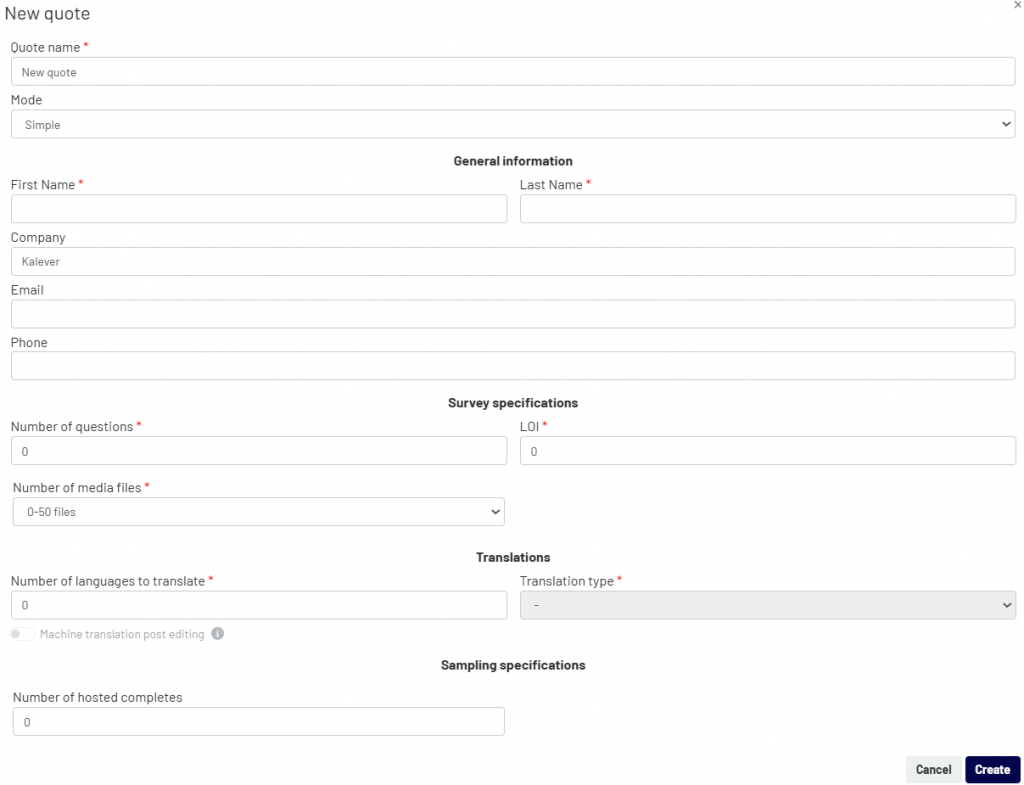
- In the “New quote” window, choose your desired mode:
- Simple Mode: The default option, perfect for generating a quick quote with basic information like the number of questions, LOI, and number of completes.
- Advanced Mode: Select this from the Mode dropdown for a more detailed quote. The mode uses more granular information (like questions with/without logic, custom-coded questions, and advanced exercises) to generate more precise costs.
- Fill in the General Information for the client and the relevant Survey specifications based on the mode you selected.
- Click Create to generate the quote.
Option 2: Custom Quote #
This mode gives you complete manual control to build a quote from scratch, adding each line item individually. It is best for complex projects with unique requirements not covered by the standard rate cards.
- Click the Custom quote button.
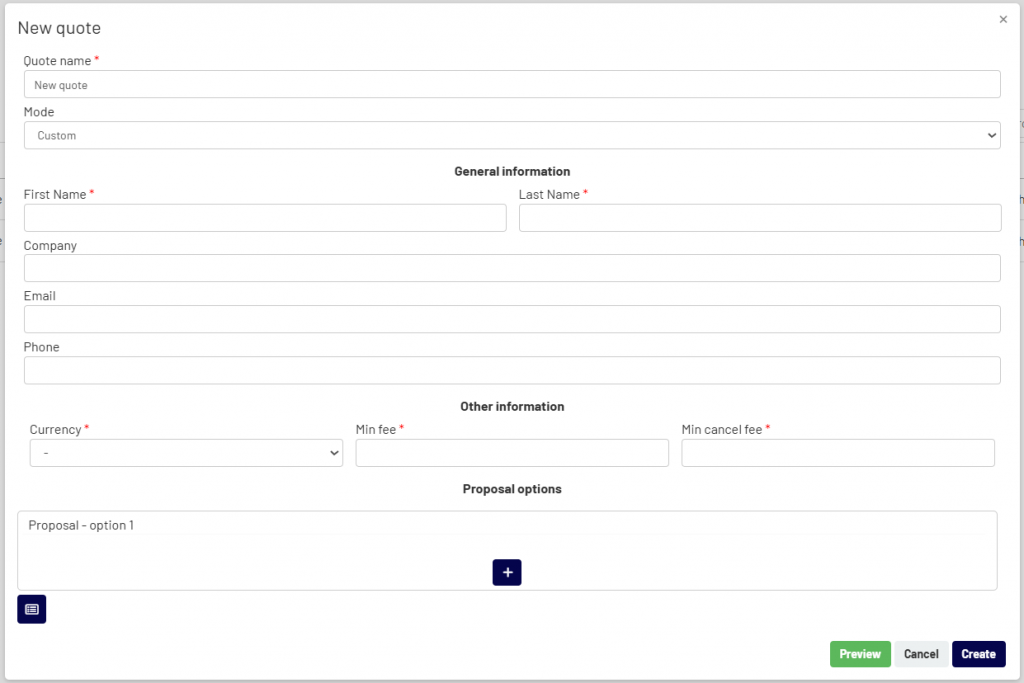
- The “New quote” window will appear.
- Fill in the General Information for the client.
- Under Other information, set the currency, minimum fee, and minimum cancellation fee for the project.
- In the Proposal options section, you can build your quote:
- Click the + icon inside the proposal option to add a new custom field (a line item).
- Click the + icon below the proposal to add an entirely new proposal option (e.g., to present different pricing tiers).
- Click Create to save the custom quote.
Option 3: Quote from Document #
Use this feature when you already have a questionnaire or project scope in a Word document.
- Click the Quote from document button.
- The “New quote” window will appear.
- Fill in the General Information for your client.
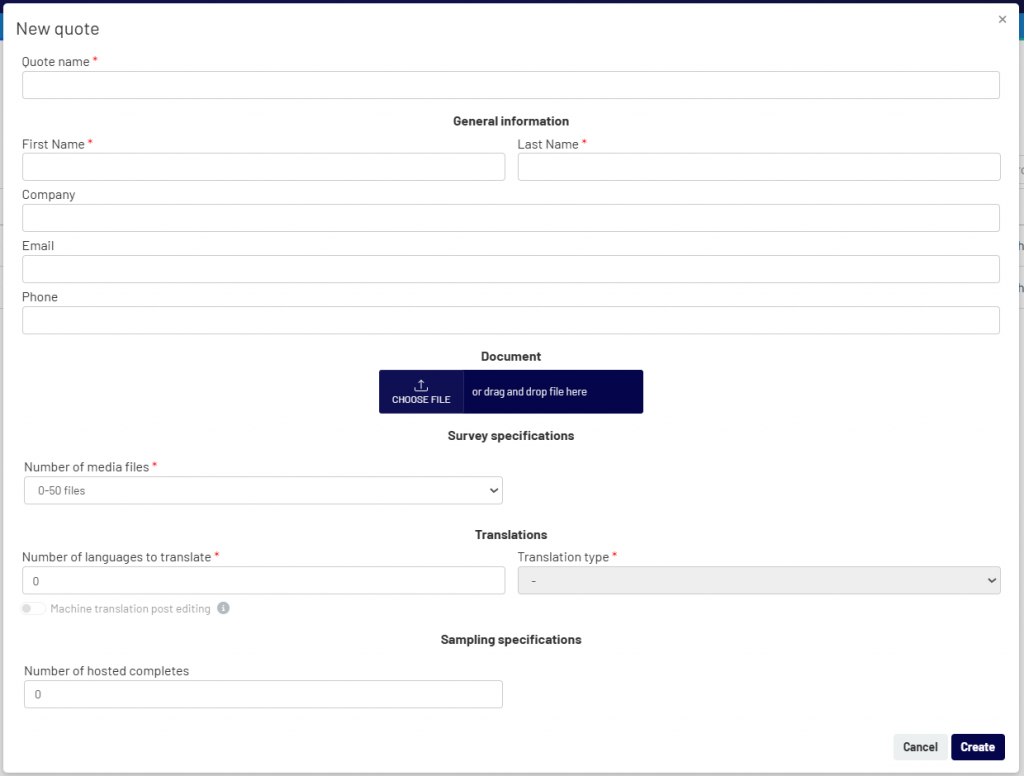
- In the Document section, drag and drop your Word file or click CHOOSE FILE to upload it.
- Enter the remaining specifications, such as the number of media files and hosted completes.
- Click Create. The platform will automatically analyze the document’s contents to generate a precise quote.