Skip to content
Kalever
  • How We Work
  • The Platform
  • Why Kalever
  • Resources
    • Articles
    • Product Decks
    • Case Studies
  • Contact
Kalever
  • How We Work
  • The Platform
  • Why Kalever
  • Resources
    • Articles
    • Product Decks
    • Case Studies
  • Contact

Getting Started

4
  • Your Home Dashboard: Overview
  • Account and Notification Settings
  • Create a New Project
  • Navigating the Project Dashboard

Pricing tool

2
  • How to Create a New Quote
  • How to Download, Edit, and Duplicate Quotes

Survey Creator

7
  • How to Create a New Survey
  • Classic Editor: Control Area
  • Classic Editor: Overview
  • Classic Editor: Adding and Editing Survey Elements
  • Classic Editor: Using Custom Modules
  • Decipher Editor: Editing Your Survey
  • AI Assistant

TrackEntry Tool

4
  • Introduction to TrackEntry: Access and Overview
  • How to Create, Edit, and Manage Entries
  • Using Live Chat for Real-Time Communication
  • How to Integrate TrackEntry with a Decipher Survey

Codebooks Tool

2
  • Creating a Codebook for Open-Ended Data
  • How to Edit and Manage Your Codebook

Best Practices: A Project Lifecycle Guide

7
  • Phase 1: The Bidding Stage: Creating a Winning Quote
  • Phase 2: Project Kick-Off: Setting Up for Success
  • Phase 3: Questionnaire Design — From Idea to Final Draft
  • Phase 4: Initial Survey Programming: A Seamless Handoff
  • Phase 5: QA – Efficient and Traceable Survey Testing
  • Phase 6: Managing Client Feedback and Changes
  • Phase 7: Data Checks — Ensuring Data Quality

Survey Intelligence

4
  • Introduction to Survey Intelligence
  • Accessing Survey Intelligence
  • Running an Analysis within Survey Intelligence tool
  • Reviewing Results
View Categories
  • Home
  • Knowledge Base
  • TrackEntry Tool
  • How to Integrate TrackEntry with a Decipher Survey

How to Integrate TrackEntry with a Decipher Survey

To streamline your survey testing and feedback process, you can directly integrate a TrackEntry project with your Decipher survey. This allows testers to report issues and leave comments without leaving the survey link.

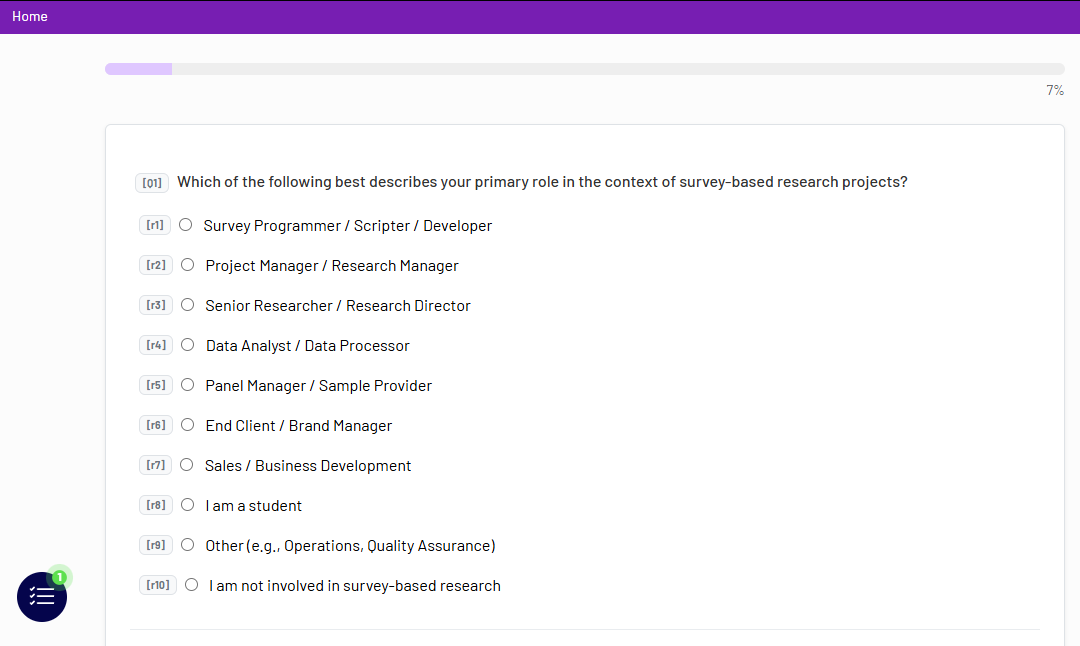
When the integration is active, a TrackEntry icon will appear in the survey interface. Testers can click this icon to open the tool and submit feedback related to the specific question they are viewing.
1. Connecting a Single TrackEntry Project #

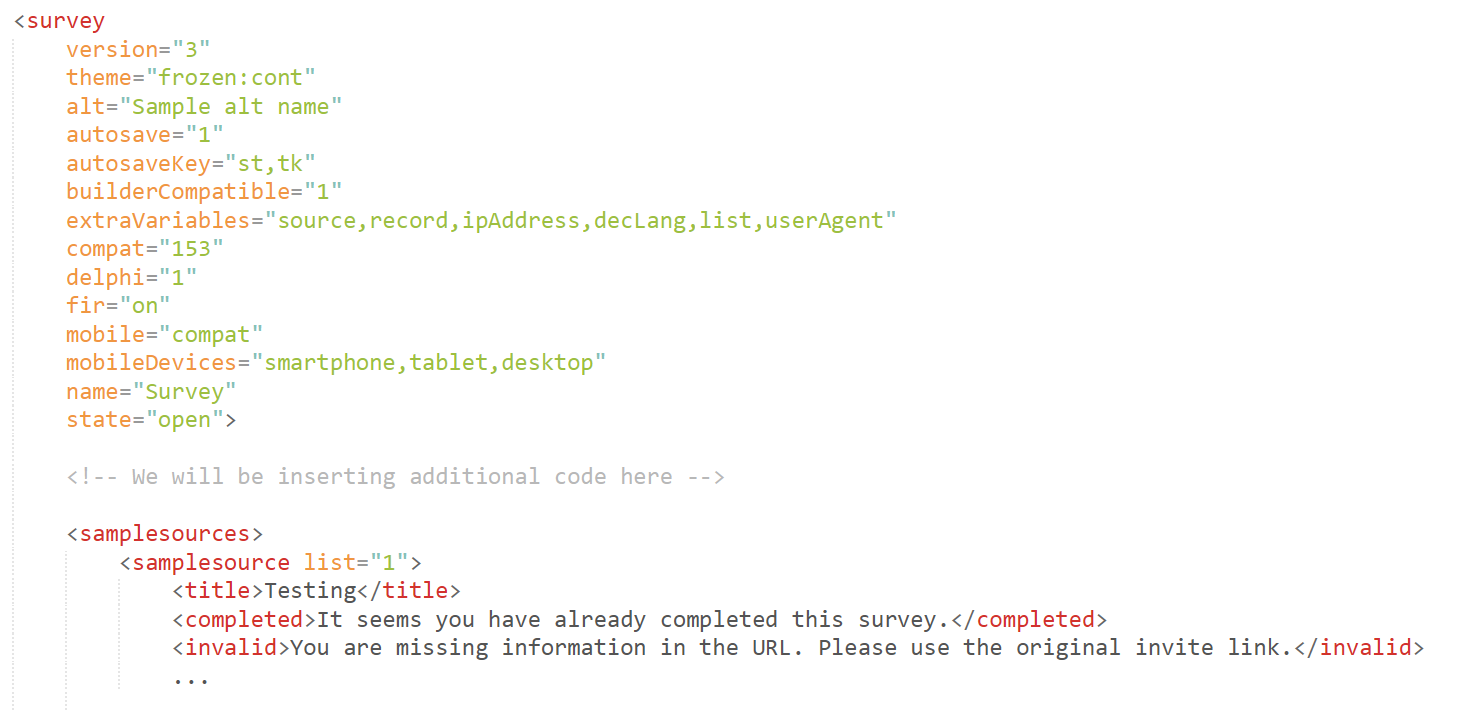
To connect a TrackEntry project to your Decipher survey, you need to add a small code snippet to your survey’s XML file.

Step 1: Copy the Code Snippet

<style cond="list=='0'" mode="after" name="respview.client.js"><![CDATA[
<script>var url = "https://hub.kalever.net/trackentry/PutYourProjectIDHere"</script>
<script src="https://hub.kalever.net/static/js/survey-tools.js"></script>
]]></style>

Use code with caution

Step 2: Add the Code to Your XML

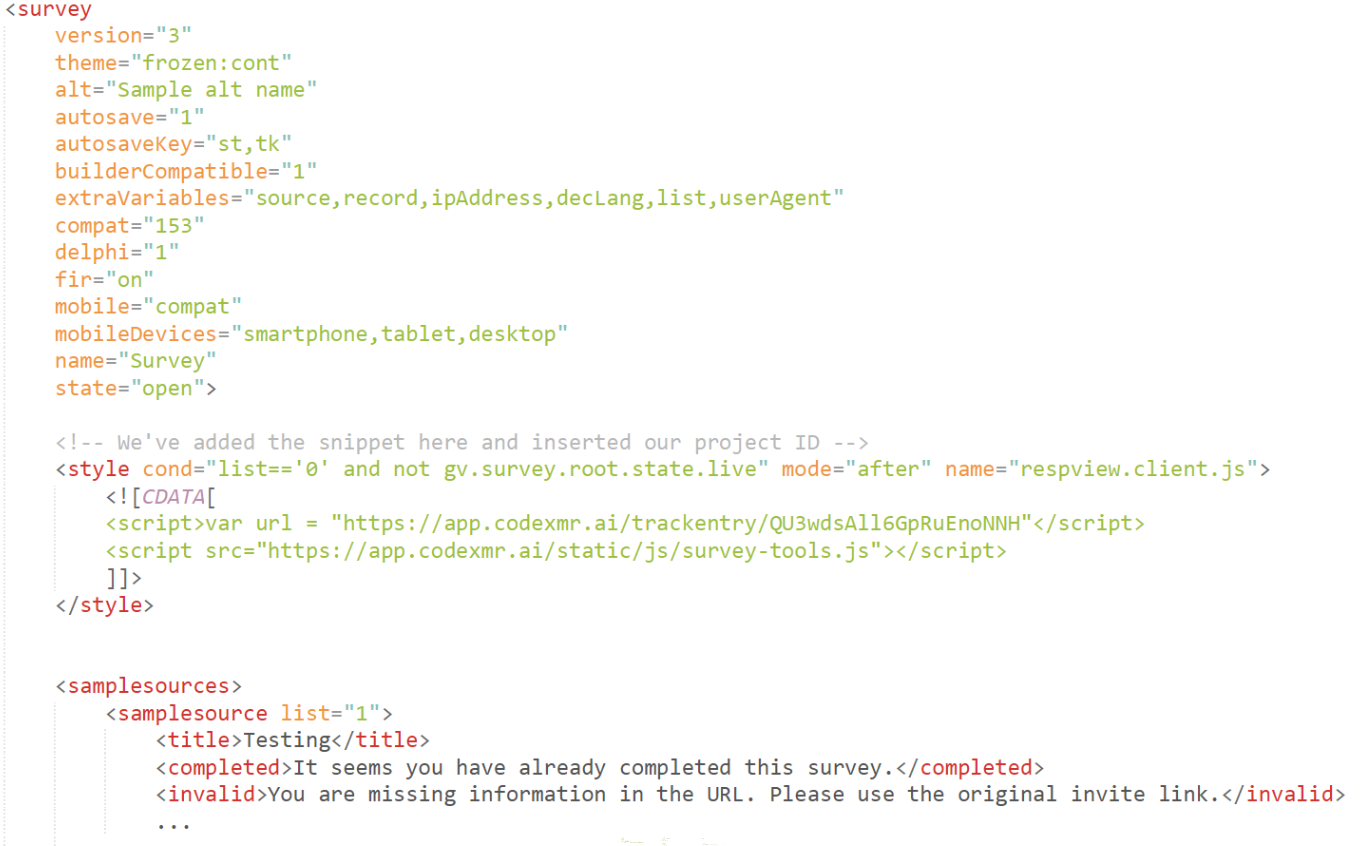
In your Decipher survey XML, paste this code snippet near the top of your XML file, directly after the opening <survey> tag.

Step 3: Add Your Project ID

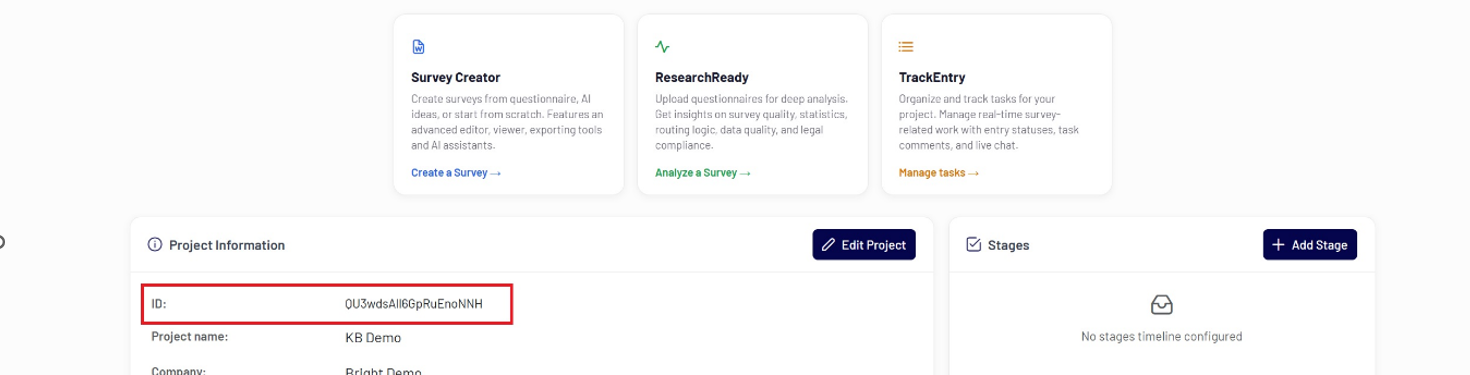
Find your unique Project ID in the system on the Project Dashboard under PROJECT INFORMATION. Copy this ID.

Then update the code snippet by replacing PutYourProjectIDHere with your actual Project ID.

Step 4: Configure the Display Condition

The code is set to display the TrackEntry icon when a specific condition is met (in the example, cond=”list==’0′”). This condition corresponds to the list parameter in your Decipher test link. You can adjust this condition based on your specific testing setup (e.g., changing the value from 0 to whatever you use for internal testing).


2.     Connecting Multiple TrackEntry Projects  #

(Example: Internal vs. External Testing)

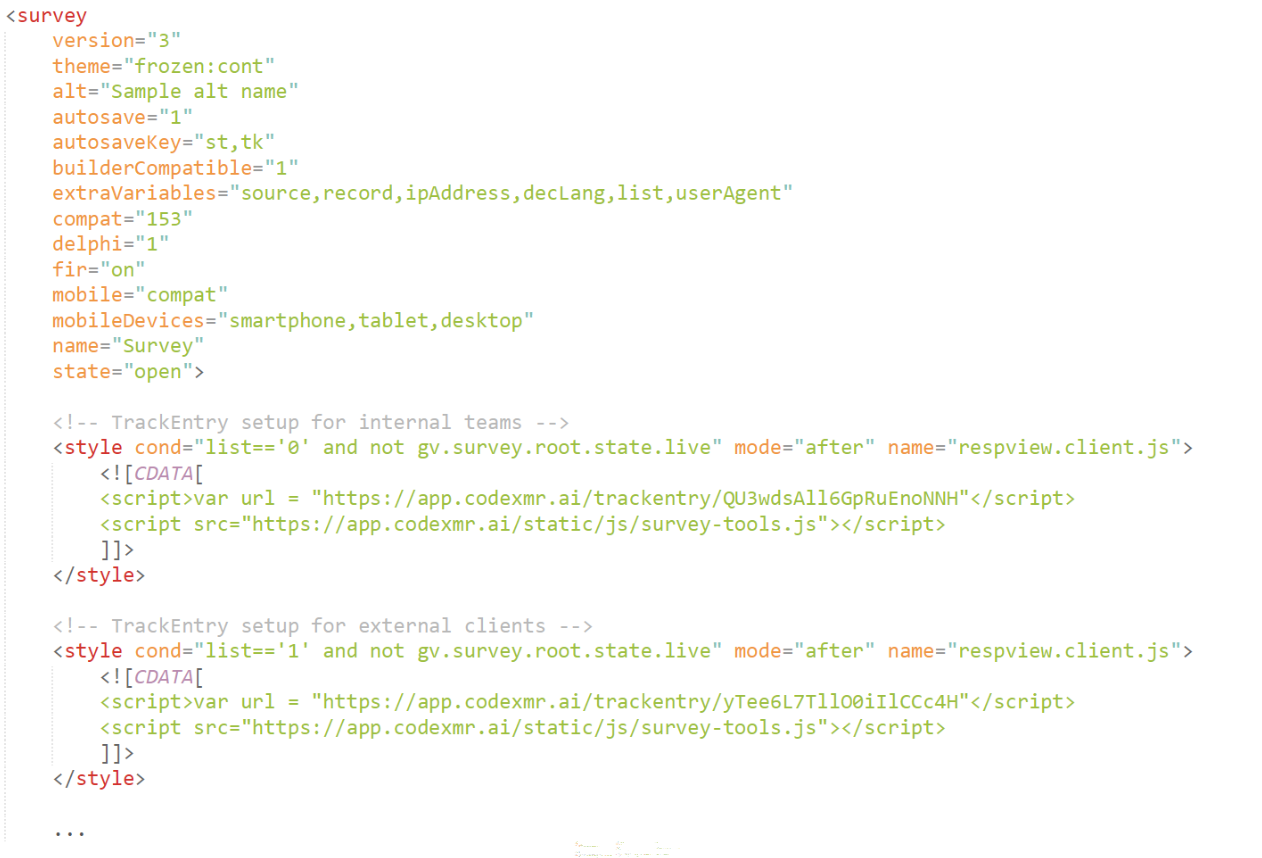
You can connect multiple TrackEntry projects to the same Decipher survey.
This is useful if you want to separate feedback from internal teams and external clients.

You can connect multiple TrackEntry projects to the same Decipher survey.
This is useful if you want to separate feedback from internal teams and external clients.

Step 1: Add a Code Snippet for Each Project
Add the integration code once for each TrackEntry project.

Step 2: Update the Project IDs and Conditions
In each snippet, replace PutYourProjectIDHere with the appropriate Project ID for your internal and external projects.

Each snippet must have a unique condition (cond=”list==’value'”). For example, list==’0′ for internal testers and list==’1′ for external clients.

Example Code:

<!-- Internal Team Feedback -->
<style cond="list=='0'" mode="after" name="respview.client.js"><![CDATA[
<script>var url = "https://hub.kalever.net/trackentry/PutYourInternalProjectIDHere"</script>
<script src="https://hub.kalever.net/static/js/survey-tools.js"></script>
]]></style>

<!-- External Client Feedback -->
<style cond="list=='1'" mode="after" name="respview.client.js"><![CDATA[
<script>var url = "https://hub.kalever.net/trackentry/PutYourExternalProjectIDHere"</script>
<script src="https://hub.kalever.net/static/js/survey-tools.js"></script>
]]></style>

Use code with caution

Using the example above, append &list=0 to test links for internal testers and &list=1 for clients. This ensures that each group sees the correct TrackEntry project for submitting feedback.

Using Live Chat for Real-Time CommunicationIntroduction to TrackEntry: Access and Overview
Table of Contents
  • 1. Connecting a Single TrackEntry Project
  • 2.     Connecting Multiple TrackEntry Projects 

Share This Article :

  • Facebook
  • X
  • LinkedIn
  • Pinterest

Was it helpful ?

  • Happy
  • Normal
  • Sad
Contact form
Contact form
Linkedin

Copyright © 2026 Kalever | Powered by Kalever