
1. Overview #
In the Decipher Editor you can work directly with your survey code (XML), similar to a standard code editor. This mode provides a flexible, code-based environment for advanced survey editing while maintaining access to key tools such as AI Assistant, ResearchReady, and Quotas.
To access the Decipher Editor:
- Set Decipher editor as a default survey editor in your Account Settings > Preferences. This way it will automatically load every time you create or start editing a survey.
- To switch to Decipher editor, open the Settings
 menu in the Control Area and select Decipher Editor. This option is particularly useful if you work with multiple editors and frequently switch between them.
2. Workspace #
When you enter the Decipher Editor, you will see a code-based interface where you can edit your survey directly.
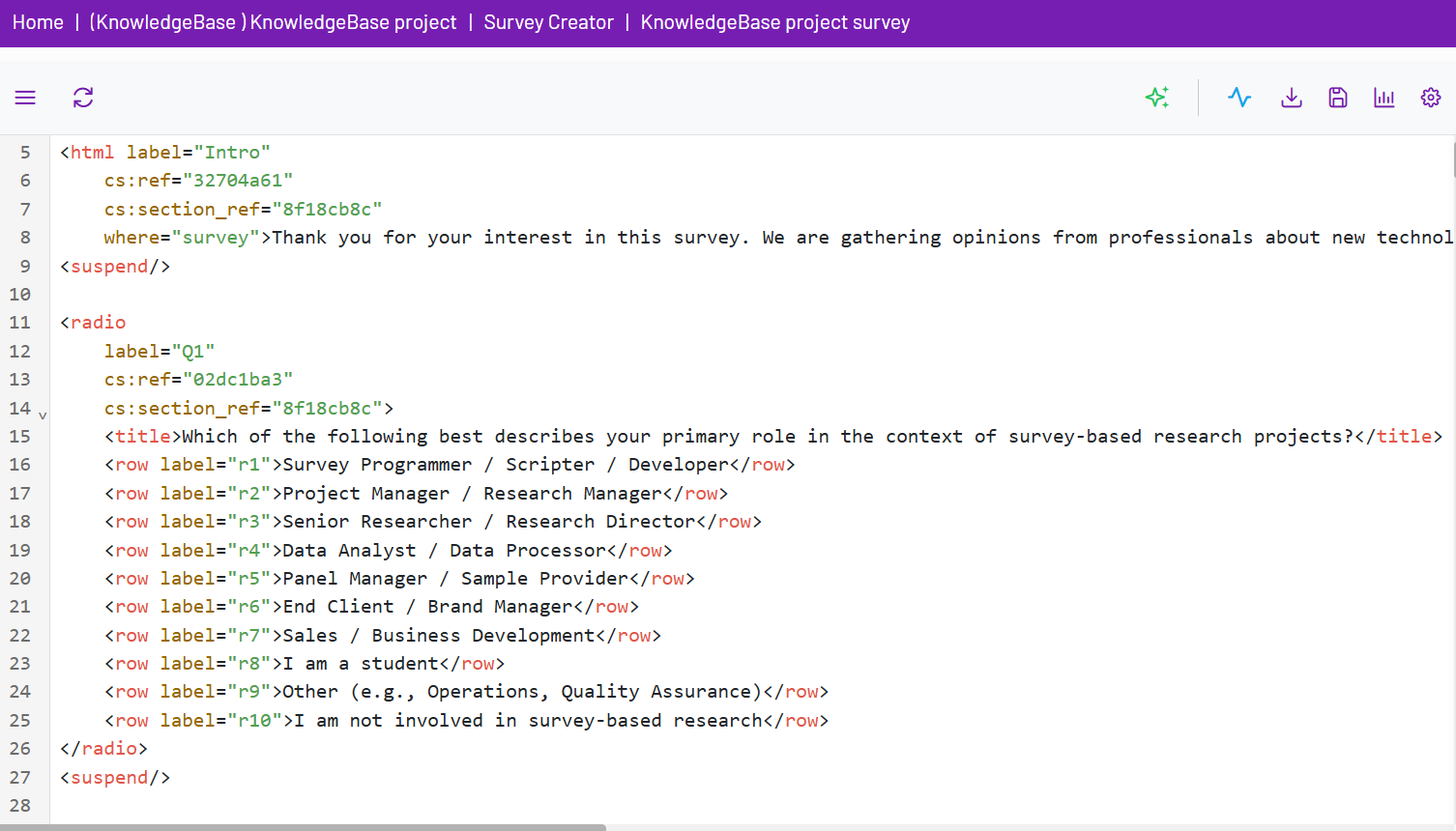
Key Workspace Features
- Code Editor: The main area where you can write and edit survey XML
- Show Source Toggle
 : Click the icon in the top-left corner to display the original Word questionnaire alongside the code. This allows you to review the source document and XML simultaneously
- Show Source Toggle
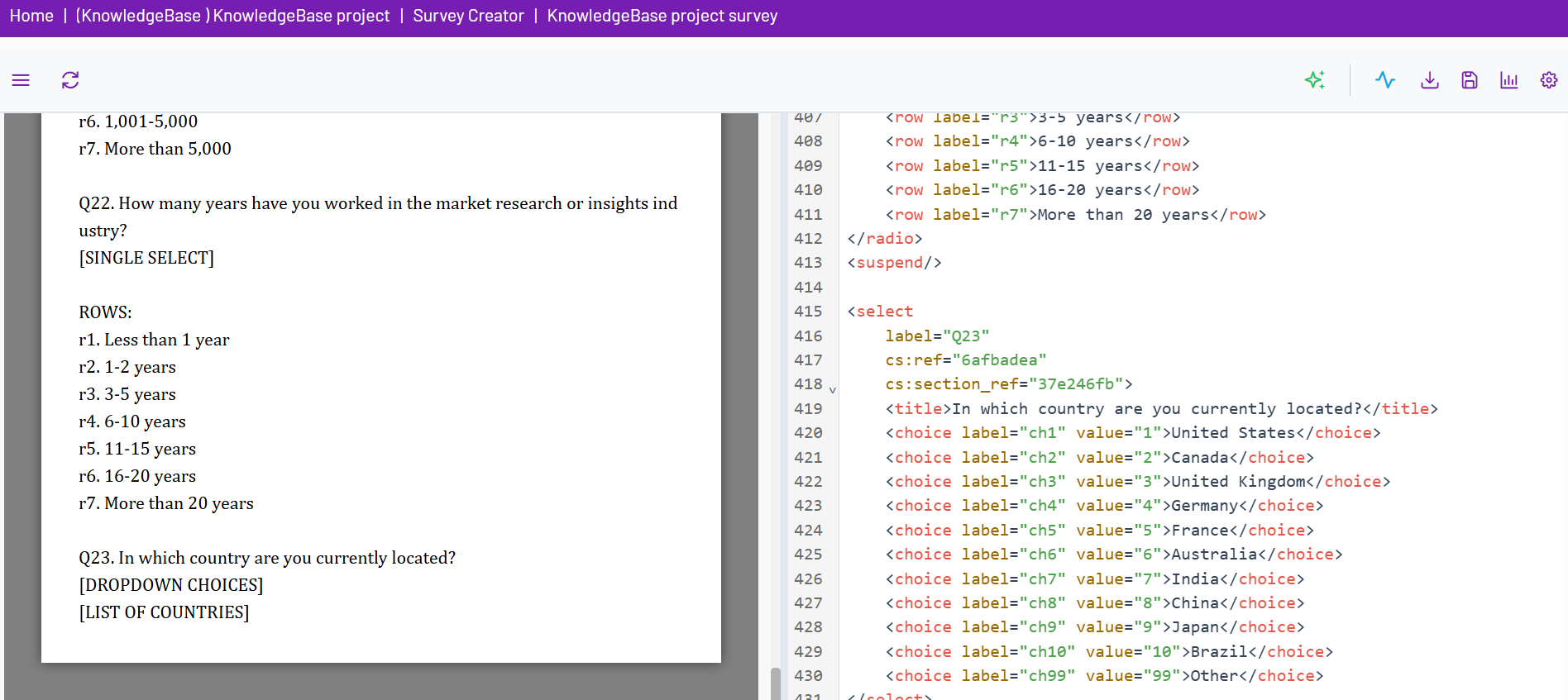
3. Control Area #
The Control Area in the Decipher Editor provides access to tools similar to the Classic Editor, adapted for code-based workflows.
Available Tools
1. AI Assistant  : Generate, refine, or update survey code, quotas and logic using AI
- Predefined instructions – Use Predefined Instructions to automate common tasks. The Assistant can generate reusable option lists for questions, optimize survey code, or perform a QA review by comparing the source questionnaire with the generated code. QA findings can be exported, copied to the clipboard, or sent directly to TrackEntry for follow-up.
* Additional predefined instructions can be configured to meet your organization’s requirements.
- Making changes – Upload the latest questionnaire or change log or just request a change to have the Assistant apply requested updates to the project’s code. Up to five supporting documents can be attached to a message in .docx, .xlsx, .xls, or .txt format. Each proposed change can be reviewed before being accepted or declined individually.
- Example: request any changes and see how the AI assistant proposes them:
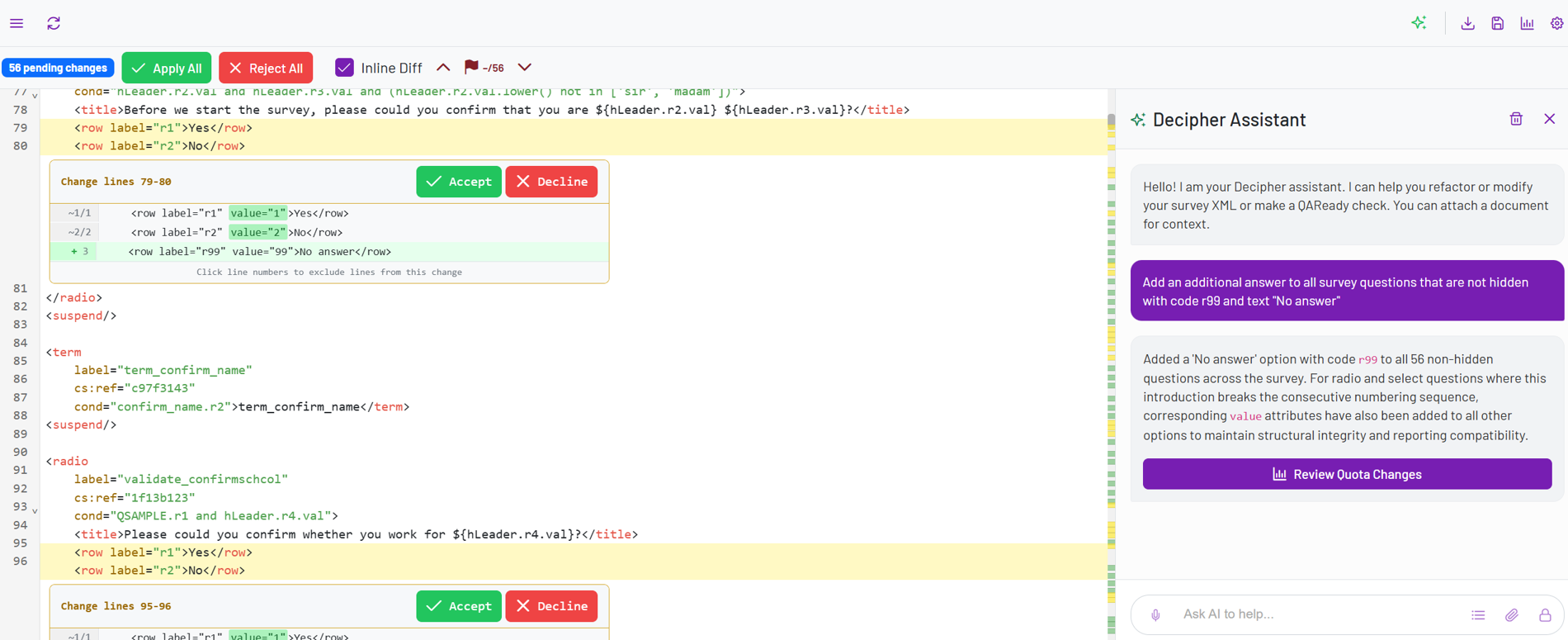
- Each proposed change can be reviewed and either Accepted or Declined individually within the code editor:
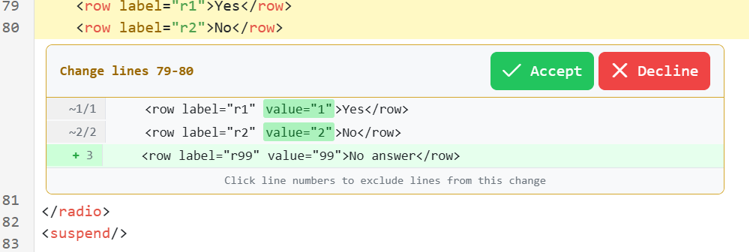
- To streamline the review process, use Apply All or Reject All to accept or decline all pending changes within the code editor:
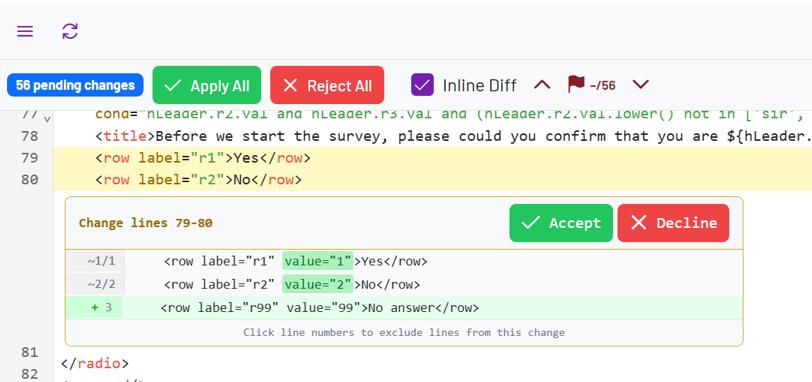
- Navigate between proposed changes using the controls in the upper-right corner of the code editor. The navigation controls also display the number of remaining changes awaiting review.

- Each proposed change can be reviewed and either Accepted or Declined individually within the code editor:
2. ResearchReady  : Access survey analysis and validation tools, check on recommended improvements. To learn more about this feature, see our guide: ResearchReady
3. Export  : Download the survey code ready for use in external platforms
4. Save  : Save your changes
5. Quotas  : Open the quotas manager to create, edit, import, or export quotas
6. Settings  : Configure editor options and access synchronization features (see section below)
Settings
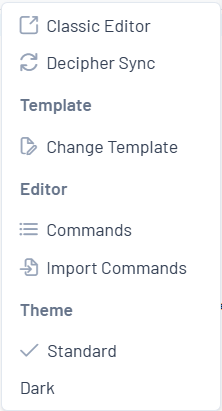
The Settings button in the Control Area opens a dropdown menu with configuration options for the editor.
Available Options
- Classic Editor: Switch back to the Classic Editor
- Decipher Sync: Connect and synchronize your project with Decipher
- Template
- Change Template: Select from available company templates
- Editor Options
- Commands: View available editor shortcuts (e.g., Alt+1 to create row options)
- Import Commands: Upload your own custom command set. Note: Please contact support for assistance with importing your custom commands.
- Theme
- Choose between standard (default) and dark mode for the editor
4. Decipher Sync #
Decipher Sync allows you to connect your project directly with Decipher and keep both environments aligned. With Decipher Sync, you can seamlessly connect your project and manage changes across both platforms.
Connecting to Decipher
When you open Decipher Sync, a connection pop-up will appear.
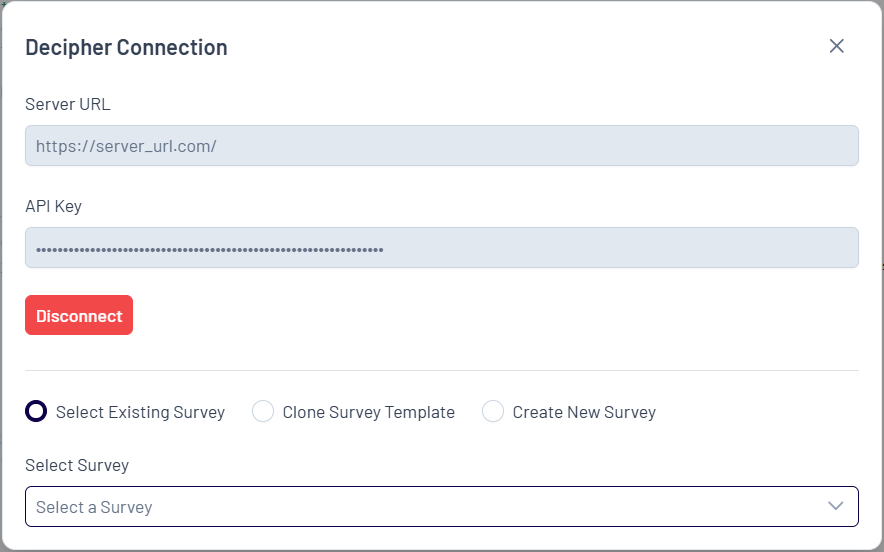
- Enter your Server URL
- Enter your API Key
- Click Connect
Synchronization Options
Once connected, you can choose how to link your project with Decipher:
- Select Existing Survey: Choose an existing survey
- Clone Survey Template: Create a survey from a template
- Create New Survey: Start a new (blank) survey
Saving and Syncing Changes
After synchronization is set up, any updates you make can be pushed to Decipher by clicking Save.
If your project is already synced and changes have been made in Decipher, you can use the Sync button in the top left corner to update your project and ensure you are working with the latest version in the editor.