
Skip to content
Kalever
  • How We Work
  • The Platform
  • Why Kalever
  • Resources
    • Articles
    • Product Decks
    • Case Studies
  • Contact
Kalever
  • How We Work
  • The Platform
  • Why Kalever
  • Resources
    • Articles
    • Product Decks
    • Case Studies
  • Contact

Getting Started

4
  • Your Home Dashboard: Overview
  • Account and Notification Settings
  • Create a New Project
  • Navigating the Project Dashboard

Pricing tool

2
  • How to Create a New Quote
  • How to Download, Edit, and Duplicate Quotes

Survey Creator

7
  • How to Create a New Survey
  • Classic Editor: Control Area
  • Classic Editor: Overview
  • Classic Editor: Adding and Editing Survey Elements
  • Classic Editor: Using Custom Modules
  • Decipher Editor: Editing Your Survey
  • AI Assistant

TrackEntry Tool

4
  • Introduction to TrackEntry: Access and Overview
  • How to Create, Edit, and Manage Entries
  • Using Live Chat for Real-Time Communication
  • How to Integrate TrackEntry with a Decipher Survey

Codebooks Tool

2
  • Creating a Codebook for Open-Ended Data
  • How to Edit and Manage Your Codebook

Best Practices: A Project Lifecycle Guide

7
  • Phase 1: The Bidding Stage: Creating a Winning Quote
  • Phase 2: Project Kick-Off: Setting Up for Success
  • Phase 3: Questionnaire Design — From Idea to Final Draft
  • Phase 4: Initial Survey Programming: A Seamless Handoff
  • Phase 5: QA – Efficient and Traceable Survey Testing
  • Phase 6: Managing Client Feedback and Changes
  • Phase 7: Data Checks — Ensuring Data Quality

Survey Intelligence

4
  • Introduction to Survey Intelligence
  • Accessing Survey Intelligence
  • Running an Analysis within Survey Intelligence tool
  • Reviewing Results
View Categories
  • Home
  • Knowledge Base
  • Survey Intelligence
  • Running an Analysis within Survey Intelligence tool

Running an Analysis within Survey Intelligence tool

When you open the Survey Intelligence tool, you will see a list of all analyses created for the current project.
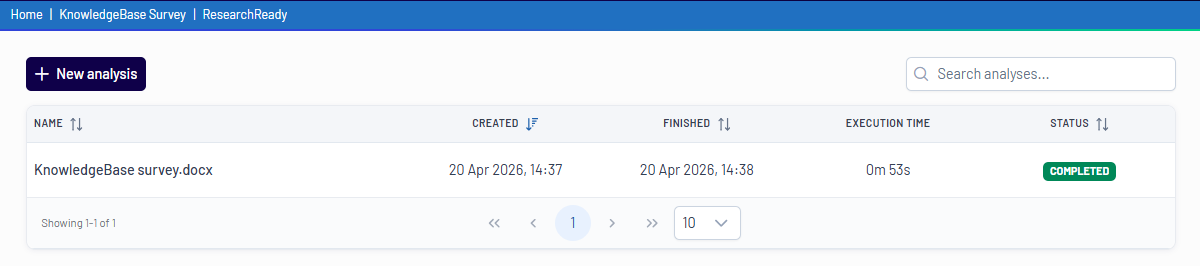
 

To run a new analysis, click the New Analysis button, upload your Word questionnaire, select the analysis modules, start the analysis, and review the generated results.
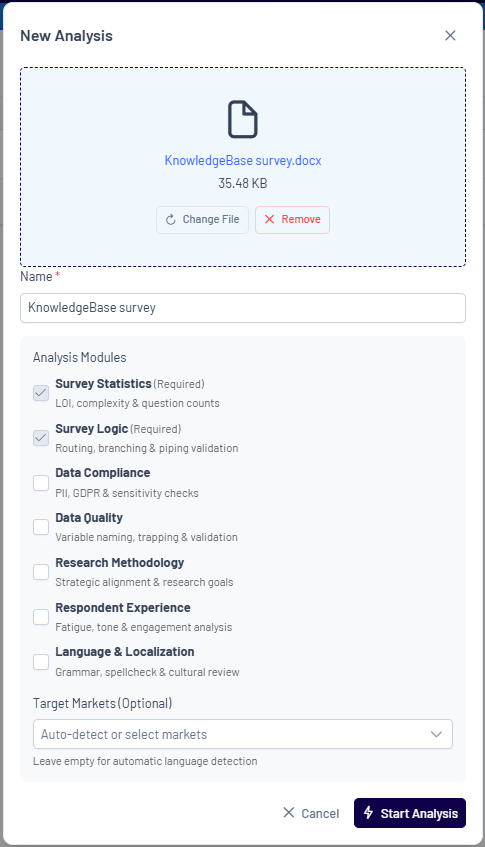
 

Analysis Modules #

Survey Intelligence includes multiple modules that can be enabled or disabled depending on your needs.

Required Modules

  • Survey Statistics: Analyzes LOI, complexity, and number of questions
  • Survey Logic: Validates routing, branching, and piping

Optional Modules

  • Data Compliance: Checks for PII, GDPR, and sensitive data
  • Data Quality: Reviews structure and variable naming
  • Research Methodology: Evaluates alignment with research goals
  • Respondent Experience: Assesses fatigue, tone, and engagement
  • Language & Localization: Checks grammar, spelling, and cultural fit

Target Markets (Optional): Specify markets or allow automatic detection

Accessing Survey IntelligenceReviewing Results
Table of Contents
  • Analysis Modules

Share This Article :

  • Facebook
  • X
  • LinkedIn
  • Pinterest

Was it helpful ?

  • Happy
  • Normal
  • Sad
Contact form
Contact form
Linkedin

Copyright © 2026 Kalever | Powered by Kalever