Skip to content
Kalever
  • How We Work
  • The Platform
  • Why Kalever
  • Resources
    • Articles
    • Product Decks
    • Case Studies
  • Contact
Kalever
  • How We Work
  • The Platform
  • Why Kalever
  • Resources
    • Articles
    • Product Decks
    • Case Studies
  • Contact

Getting Started

4
  • Your Home Dashboard: Overview
  • Account and Notification Settings
  • Create a New Project
  • Navigating the Project Dashboard

Pricing tool

2
  • How to Create a New Quote
  • How to Download, Edit, and Duplicate Quotes

Survey Creator

7
  • How to Create a New Survey
  • Classic Editor: Control Area
  • Classic Editor: Overview
  • Classic Editor: Adding and Editing Survey Elements
  • Classic Editor: Using Custom Modules
  • Decipher Editor: Editing Your Survey
  • AI Assistant

TrackEntry Tool

4
  • Introduction to TrackEntry: Access and Overview
  • How to Create, Edit, and Manage Entries
  • Using Live Chat for Real-Time Communication
  • How to Integrate TrackEntry with a Decipher Survey

Codebooks Tool

2
  • Creating a Codebook for Open-Ended Data
  • How to Edit and Manage Your Codebook

Best Practices: A Project Lifecycle Guide

7
  • Phase 1: The Bidding Stage: Creating a Winning Quote
  • Phase 2: Project Kick-Off: Setting Up for Success
  • Phase 3: Questionnaire Design — From Idea to Final Draft
  • Phase 4: Initial Survey Programming: A Seamless Handoff
  • Phase 5: QA – Efficient and Traceable Survey Testing
  • Phase 6: Managing Client Feedback and Changes
  • Phase 7: Data Checks — Ensuring Data Quality

Survey Intelligence

4
  • Introduction to Survey Intelligence
  • Accessing Survey Intelligence
  • Running an Analysis within Survey Intelligence tool
  • Reviewing Results
View Categories
  • Home
  • Knowledge Base
  • Getting Started
  • Account and Notification Settings

Account and Notification Settings

This guide covers how to manage your personal settings and the settings for each of your projects, including how to stay updated with notifications and collaborate with your team.

1. Menu #

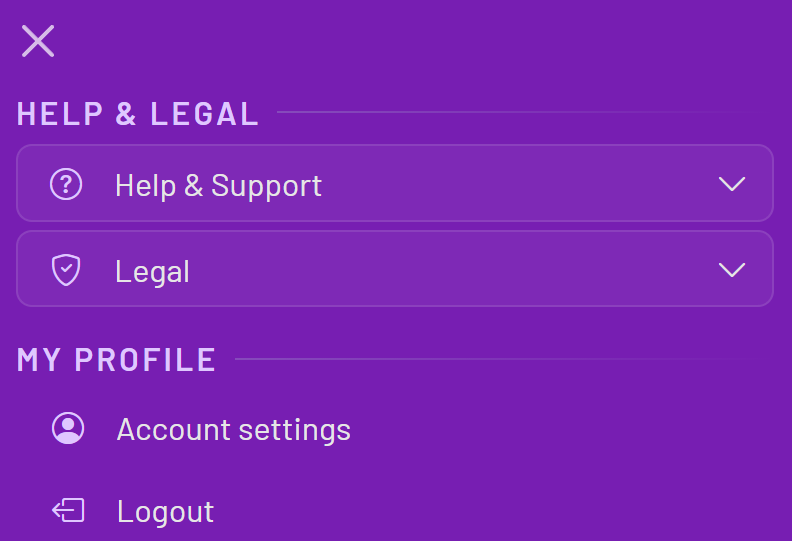
To access your personal account settings and other legal information, click the Menu icon (the three horizontal lines) in the top right corner of the screen.

This will open a sidebar menu with two main sections:


Help & Legal:
This section provides access to help resources and legal documents.

  • Help & Support: View the Changelog or Contact Support.
  • Legal: Includes Terms & Conditions, Privacy Policy, and Cookies Policy.

My Profile:

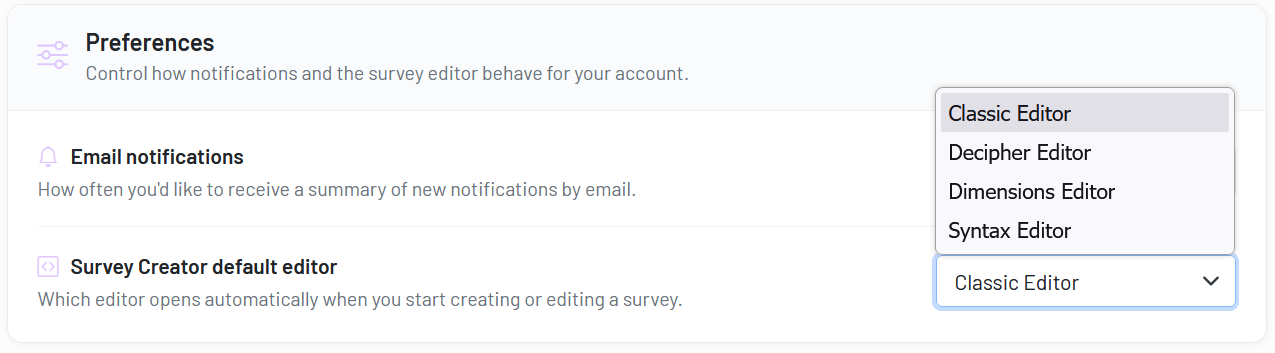
  • Account settings: Click here to manage your personal profile details and notification preferences.
  • Logout: Securely log out of your account.


2. Managing Your Notifications #

You receive notifications for important events across all projects where you are both a member and subscribed. A red number on the bell icon indicates new, unread notifications.
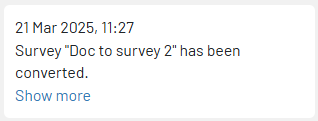
Click the bell icon to see a dropdown list of your recent notifications. Each notification provides a summary of the update and a “Show more” link to navigate directly to the relevant project.


To control how often you receive these notifications via email:

  1. Navigate to the Menu > Account settings.
  2. Find the email notification settings.
  3. Choose your desired frequency from the dropdown menu (e.g., Never, Every 30 mins, Every 24 hours, etc.). 
Your Home Dashboard: OverviewCreate a New Project
Table of Contents
  • 1. Menu
  • 2. Managing Your Notifications

Share This Article :

  • Facebook
  • X
  • LinkedIn
  • Pinterest

Was it helpful ?

  • Happy
  • Normal
  • Sad
Contact form
Contact form
Linkedin

Copyright © 2026 Kalever | Powered by Kalever