
1. Overview #
The Dimensions Editor enables direct editing of survey metadata and routing, providing an experience similar to the Dimensions Professional application.
This editor offers a flexible, code-based environment for advanced survey development while retaining access to key platform features such as AI Assistant and ResearchReady Analysis.
You can also blend generated survey metadata and routing into an existing MDD shell/template, allowing you to preserve project-specific structures and settings.
To access the Dimensions Editor:
- Set Dimensions editor as a default survey editor in your Account Settings > Preferences. The Dimensions editor will then open automatically whenever you create or edit a survey.
- To switch to Dimensions editor, open the Settings
 menu in the Control Area and select Dimensions Editor. This option is useful for users who work with multiple editors and frequently switch between them.
2. Workspace #
The Dimensions Editor provides a code-based workspace for directly editing survey metadata and routing.
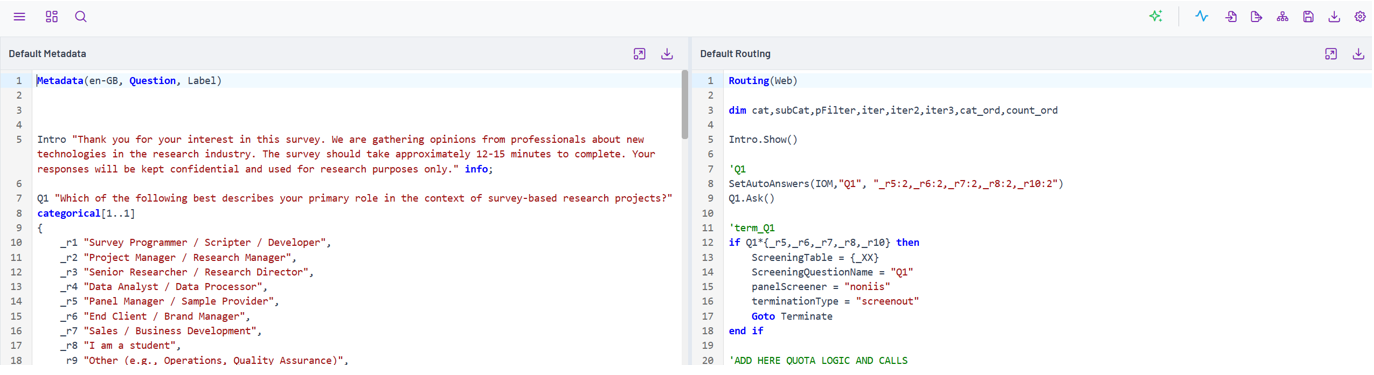
Key Workspace Features #
- Metadata Editor and Routing Editor: Dedicated editors for modifying your survey’s metadata and routing code.
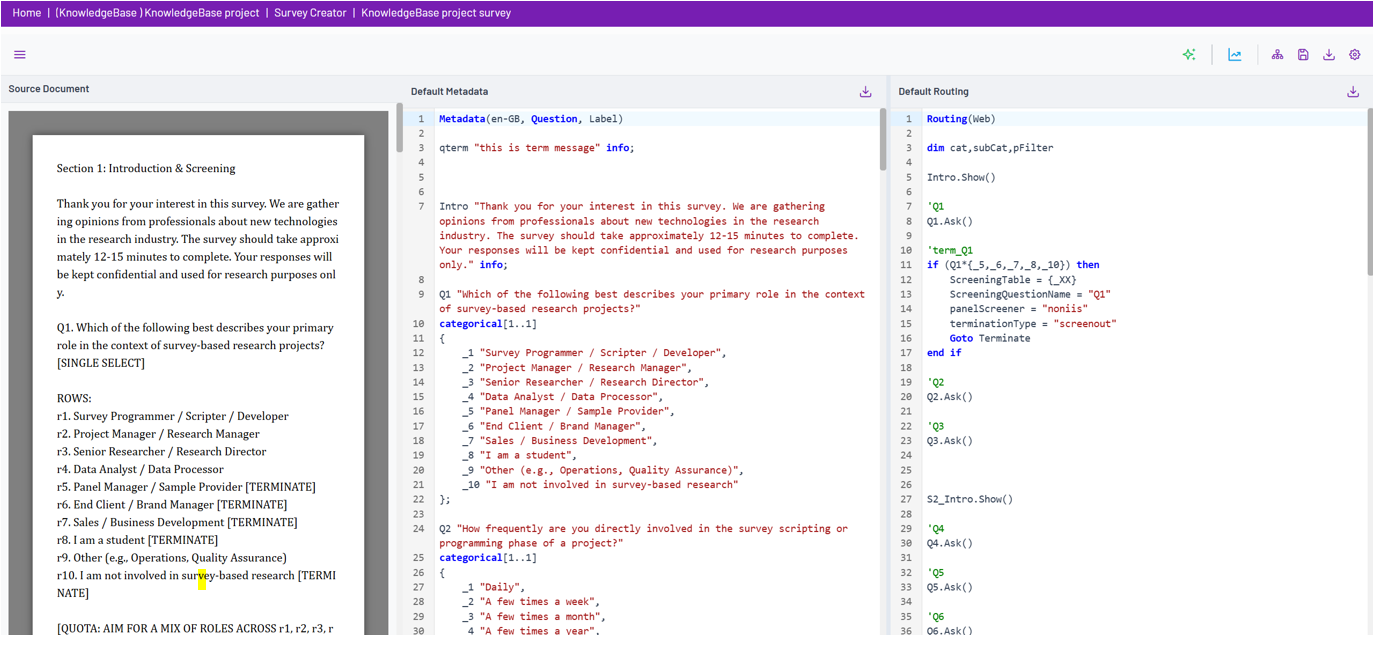
- Show Source Toggle
 : Click the Show Source Document icon in the upper-left corner to display the original questionnaire alongside the generated code. This allows you to review the source document while editing the survey metadata and routing.
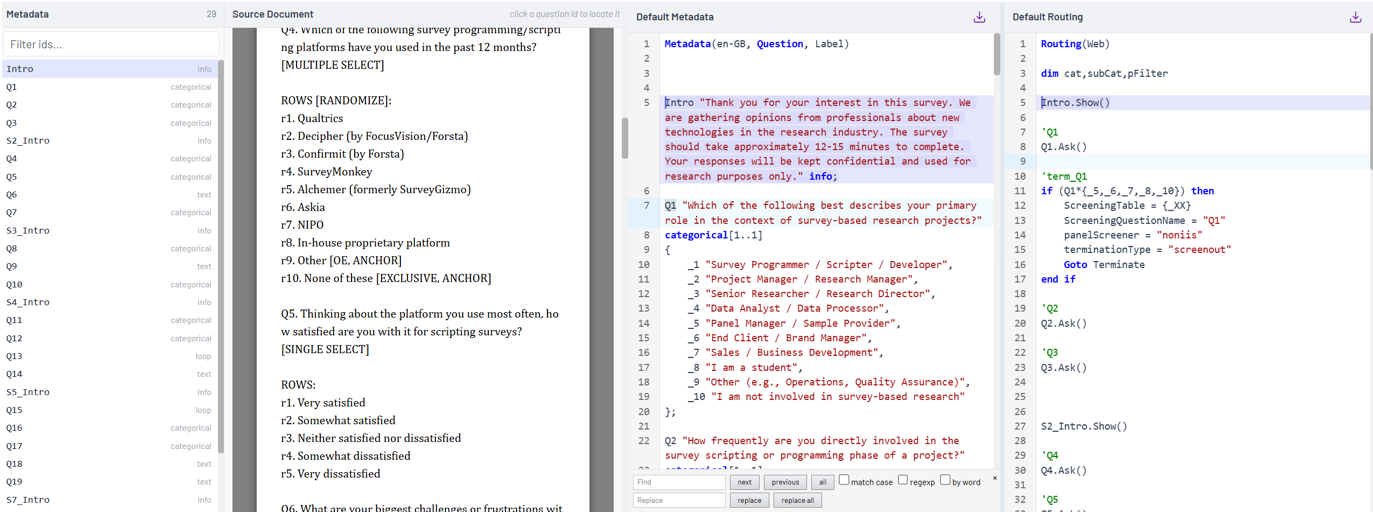
- Metadata Outline Toggle
 : Click the Metadata Outline icon in the upper-left corner to display the question outline panel. This panel provides quick navigation throughout the survey’s metadata and routing. Selecting a question from the list automatically positions both the metadata and routing editors at the corresponding question.
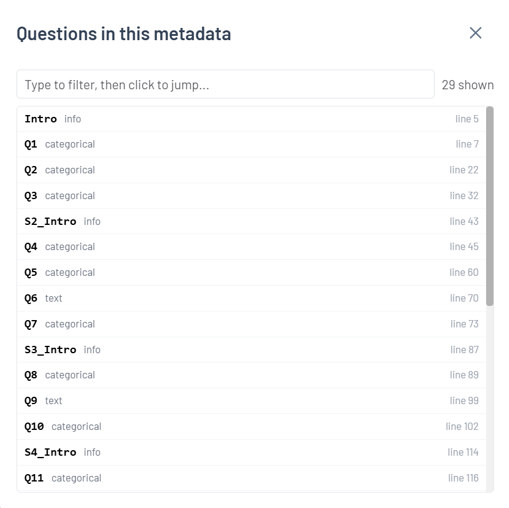
- Find a Question by ID Toggle
 : Click the Find a Question by ID icon in the upper-left corner to open the search dialog. This feature enables quick navigation to a specific survey question by ID. Selecting a question from the results automatically positions both the metadata and routing editors at the corresponding question.
3. Control Area #
The Control Area provides access to tools and actions that support code-based survey development.

Available Tools #
1. AI Assistant  : Generate, refine, and update survey metadata and routing using AI-powered assistance.
*The AI Assistant button is only available to users whose permissions include editing the Dimensions editor and access to the AI assistant.
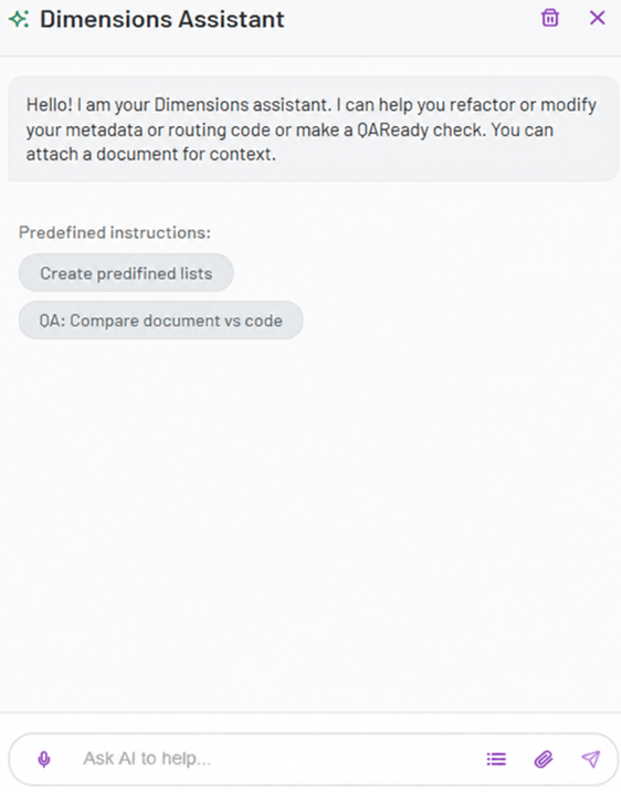
- Predefined instructions – Use Predefined Instructions to automate common tasks. The Assistant can generate reusable option lists for questions, optimize metadata and routing code, improve survey routing efficiency, and perform a QA review by comparing the source questionnaire with the generated metadata and routing. QA findings can be exported, copied to the clipboard, or sent directly to TrackEntry for follow-up.
*Additional predefined instructions can be configured to meet your organization’s requirements. - Making changes – Upload the latest questionnaire and/or change log to have the Assistant apply client-requested updates to the project’s metadata and routing. Up to five supporting documents can be attached to a message in .docx, .xlsx, .xls, or .txt format. Each proposed change can be reviewed before being accepted or declined individually.
* Example: Upload a revised questionnaire and provide instructions to apply the changes highlighted in yellow
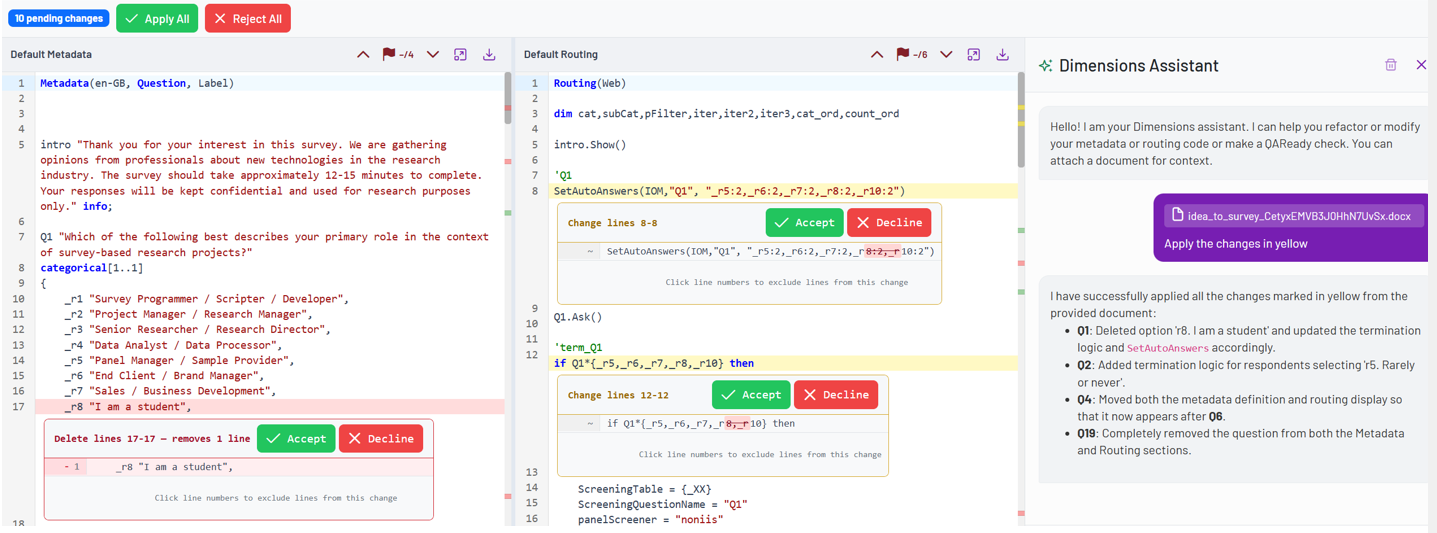
* The Assistant highlights all proposed changes in both metadata and routing, clearly identifying the affected lines and the exact modifications that will be applied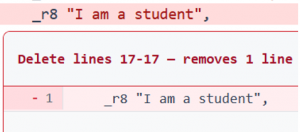
* Each proposed change can be reviewed and either Accepted or Declined individually within the metadata and routing panes.
* To streamline the review process, use Apply All or Reject All to accept or decline all pending changes within a pane.
* Navigate between proposed changes using the controls in the upper-right corner of each pane. The navigation controls also display the number of remaining changes awaiting review.
- Messages can be entered using voice-to-text. Assistant responses can be copied to the clipboard or downloaded as a PDF when they do not contain proposed code changes.
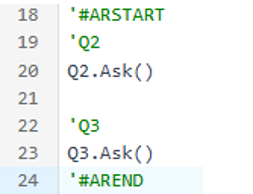
- The AI assistant can target specific sections of metadata or routing code. Enclose the relevant section between #ARSTART# and #AREND# comment markers to focus the Assistant on that range. This is particularly useful when working with large blended MDD shells. The remainder of the pane is provided as context but is not included in the Assistant’s response.
- Chat history can be cleared at any time. Each survey maintains its own conversation history, which remains available when returning to the editor in the same browser.
2. ResearchReady  : Access survey validation and analysis tools and review recommended improvements across areas such as Research Methodology, Survey Logic, Respondent Experience, Language and Localization, Data Compliance, and Data Quality.
To learn more about this feature, see our guide: ResearchReady
3. Import MDD  : Import a project .mdd file to load its metadata and routing into the Dimensions Editor
4. Export MDD  : Export metadata and routing from the Dimensions Editor as an .mdd file for use in external platform
5. Blend into MDD shell  :Combine survey-specific code with pre-defined template .mdd files.
6. Save as a Named Save Point  :Create a named save point to preserve a version of your metadata and routing. Up to 10 save points can be stored per survey.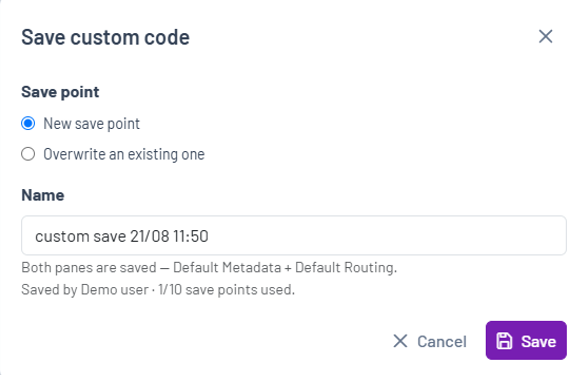
7. Export  : Download the survey metadata and routing for use in external systems and applications.
8. Settings : Configure the editor, change templates or themes, or switch back to the Classic Editor.
Settings #
The Settings button in the Control Area provides access to editor configuration and customization options.
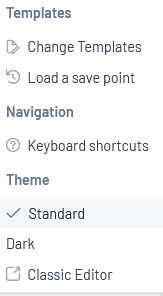
Available Options
- Templates
- Change Template: Select from available company templates
- Load a save point: Restore a previously saved version or reset the survey using the selected template.
- Theme: Choose from the available editor themes to customize the workspace appearance.
- Navigation: View the list of available keyboard shortcuts
- Classic Editor: Switch back to the Classic Editor