
Skip to content
Kalever
  • How We Work
  • The Platform
  • Why Kalever
  • Resources
    • Articles
    • Product Decks
    • Case Studies
  • Contact
Kalever
  • How We Work
  • The Platform
  • Why Kalever
  • Resources
    • Articles
    • Product Decks
    • Case Studies
  • Contact

Getting Started

4
  • Your Home Dashboard: Overview
  • Account and Notification Settings
  • Create a New Project
  • Navigating the Project Dashboard

Pricing tool

2
  • How to Create a New Quote
  • How to Download, Edit, and Duplicate Quotes

Survey Creator

7
  • How to Create a New Survey
  • Classic Editor: Control Area
  • Classic Editor: Overview
  • Classic Editor: Adding and Editing Survey Elements
  • Classic Editor: Using Custom Modules
  • Decipher Editor: Editing Your Survey
  • AI Assistant

TrackEntry Tool

4
  • Introduction to TrackEntry: Access and Overview
  • How to Create, Edit, and Manage Entries
  • Using Live Chat for Real-Time Communication
  • How to Integrate TrackEntry with a Decipher Survey

Codebooks Tool

2
  • Creating a Codebook for Open-Ended Data
  • How to Edit and Manage Your Codebook

Best Practices: A Project Lifecycle Guide

7
  • Phase 1: The Bidding Stage: Creating a Winning Quote
  • Phase 2: Project Kick-Off: Setting Up for Success
  • Phase 3: Questionnaire Design — From Idea to Final Draft
  • Phase 4: Initial Survey Programming: A Seamless Handoff
  • Phase 5: QA – Efficient and Traceable Survey Testing
  • Phase 6: Managing Client Feedback and Changes
  • Phase 7: Data Checks — Ensuring Data Quality

Survey Intelligence

4
  • Introduction to Survey Intelligence
  • Accessing Survey Intelligence
  • Running an Analysis within Survey Intelligence tool
  • Reviewing Results
View Categories
  • Home
  • Knowledge Base
  • TrackEntry Tool
  • Introduction to TrackEntry: Access and Overview

Introduction to TrackEntry: Access and Overview

TrackEntry is your project’s central hub for communication and issue tracking. It allows your team to leave comments, report issues, and track the progress of a survey, all in one place.

You can access TrackEntry in two ways:

  1. From the Project Dashboard, click the TrackEntry button.
  2. If TrackEntry is integrated with a live survey, a TrackEntry icon will appear in the survey link for easy access during testing.

The Main TrackEntry View #

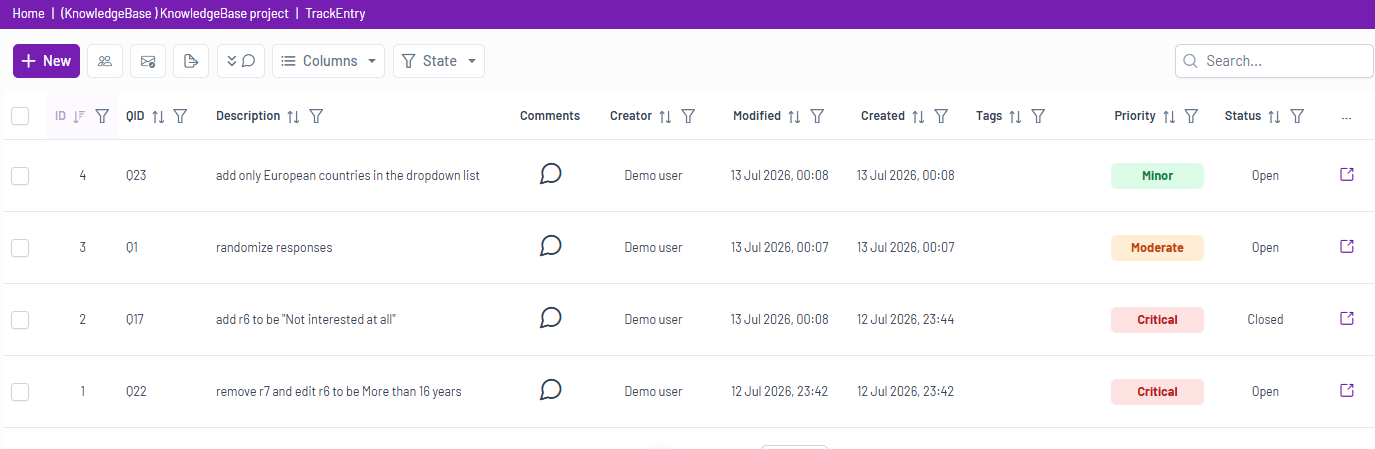
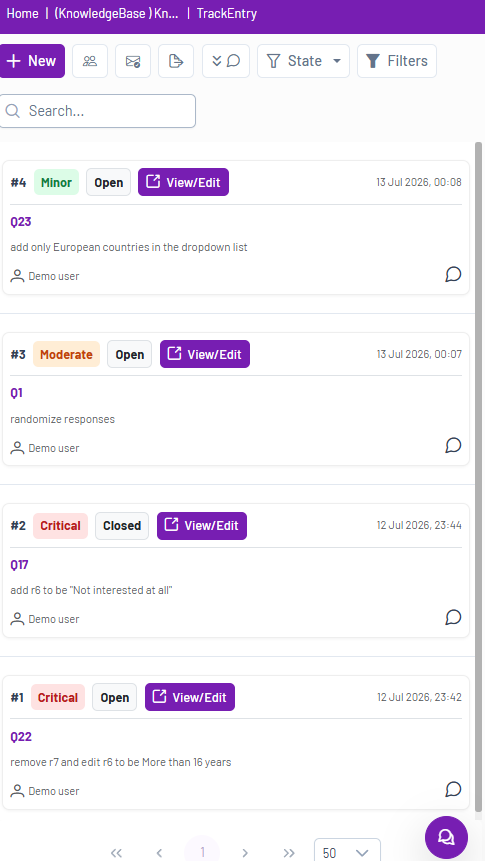
When you open TrackEntry, you will see the main dashboard, which lists all the entries for the current project. The dashboard table has two display modes depending on your device size.

Full table view (larger screens)

Compact view (smaller screens)
Here is a guide to the main components:


1.      Top Menu #

At the top left, you will find the main TrackEntry toolbar.

  • New Entry : Create a new entry for feedback or a task.
  • Members : View the members of the TrackEntry project.
  • Email Summarizer : Paste feedback emails, optionally translate them into English, and let the AI convert them into entries. Before importing, you can:
    • Select which entries to include
    • Add tags to help distinguish them from other entries
    • Update their priority and status as needed
  • Export table : Export entries, comments, and attachments into an Excel file.
  • Expand comments : Expand all comments in the table view.
  • Column Display : Customize which columns are visible in the entry list.
  • Global State Filter : Filter the list to show only specific entries (e.g., New, Updated, etc.).


2.     The Entries List #


The central part of the screen is the list of all entries. Each row is a separate entry and contains key information at a glance:

  • ID / QID: The unique ID for the entry and the corresponding question ID it relates to.
  • Description: A summary of the entry’s content.
  • Comments: An icon indicating the number of new comments on an entry.
  • Tags, Priority, and Status: See organizational tags and the current state of the entry (e.g., Minor priority, Open status).


3.     Live Chat #

In the bottom right corner, you will see the Live Chat icon . A red number indicates new, unread messages. Click this icon to open the project’s chat window for real-time discussions with all project members.

How to Integrate TrackEntry with a Decipher SurveyHow to Create, Edit, and Manage Entries
Table of Contents
  • The Main TrackEntry View
    • 1.      Top Menu
    • 2.     The Entries List
    • 3.     Live Chat

Share This Article :

  • Facebook
  • X
  • LinkedIn
  • Pinterest

Was it helpful ?

  • Happy
  • Normal
  • Sad
Contact form
Contact form
Linkedin

Copyright © 2026 Kalever | Powered by Kalever