
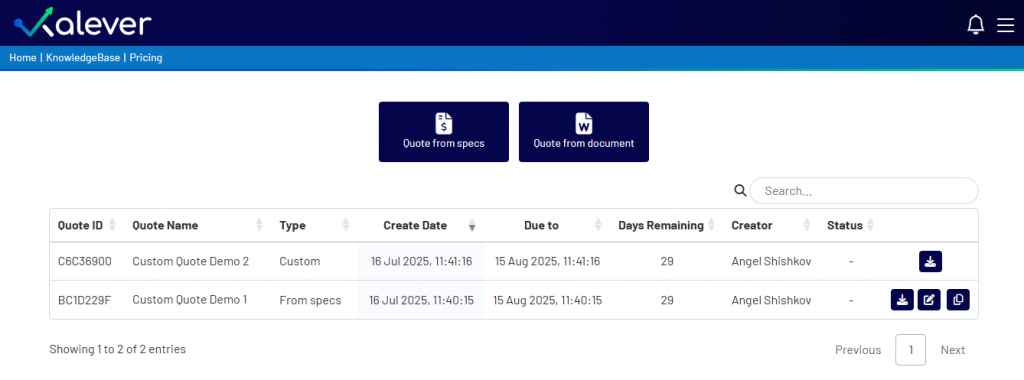
After you create a quote, it will be saved to your Pricing Dashboard. This dashboard displays a list of all quotes generated for the project, allowing you to easily manage them.
Managing Your Quotes #
For each quote listed in the dashboard, you will find a set of action icons on the far right of its row.
Here is what each action does:
- Download Quote
 : Click this to instantly download the selected quote as a PDF. The document will be generated using your company’s official template and is ready to be sent directly to your client.
 - Edit Quote
 : If you need to make changes to a quote after it has been created, click this button. This will reopen the quote creation window with all the previously entered information, allowing you to make adjustments and save it again.
 - Duplicate Quote
 : This is a time-saving feature for when you need to create a new quote that is very similar to an existing one. Clicking this will create a new copy of the selected quote, which you can then edit without altering the original.